![vCreative_Logo_RGB.png]](https://vcreativeinc.com/hs-fs/hubfs/vCreative_Logo_RGB.png?width=200&height=38&name=vCreative_Logo_RGB.png)
This article provides an overview of all the tools and features on the Home/Calendar page and includes links to additional information. You may wish to zoom your browser to see the visuals more clearly.
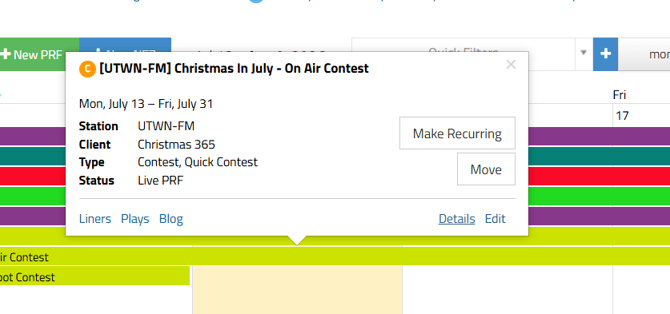
The Home/Calendar tab is the calendar view where you see all the PRFs (promotion request forms) on the calendar. If you click on any of the PRFs on the calendar a pop-up will appear, providing some details about that promotion.
The pop-up will show the PRF name, the station for which it was created, its scheduled dates, the client name, the PRF type, and the PRF status. You can also directly access the Liners tab, the Plays tab and the Blog tool specifically for this PRF. The Make Recurring tool in the pop-up allows you to duplicate this PRF multiple times. For example, if you create a 'patio Thursday' remote and that is a promotion running for the next several Thursdays you can create the first one and then use the Make Recurring tool to create the same promotion for the following Thursdays as needed. The Move tool allows you to move this PRF into an already created Campaign. Find out more about Campaigns in #8 below. The Details button opens the PRF to view all the details inside the PRF. The Edit button opens the PRF form so you (if you have the proper ability) can edit the details of the PRF.
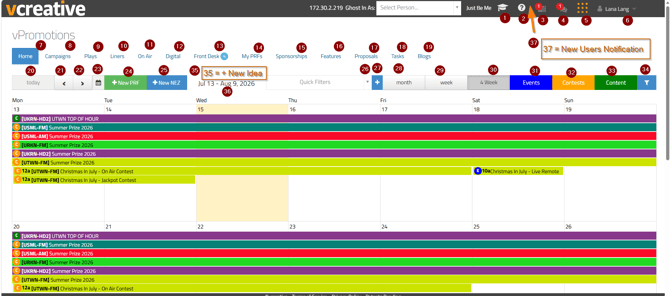
Aside from the calendar view of PRFs, the Home/Calendar page is also the location for several main feature tabs and additional feature tabs.
-
The Graduation Cap icon - Training. Clicking the icon will bring you to a list of several recorded full trainings.
-
The ? icon - Help/Knowledge Base. Clicking the icon will bring you directly to our knowledge base, where you can search for any documentation/help you might need.
-
To-Do List icon - Tasks to-do. A red number indicates how many items require your attention; the items 'to-do'. Hovering over the number will populate a quick view of those to do items. This icon is designed to show you the number of pending task notifications. The items you have to-do will be listed in the Tasks tab (#18). You can click directly on the Tasks tab or you can click on the To-Do icon to bring you to the Tasks tab (#18).
-
Blog icon - Blogs to read. If you have a number in red, that number represents how many blog conversations you have not yet read. Hovering over the number will populate a quick view of those blog conversations. This icon is designed to show you the number of blog notifications. The blog conversations you have to read will be listed in the Blogs tab (#19). You can click directly on the Blogs tab or you can click on the Blogs icon to bring you to the Blogs tab (#19).
- Waffle icon - Product Selector. This will populate ONLY if you have multiple vCreative products. The Waffle icon is designed to let you easily maneuver between your vCreative products using a single sign-on option (SSO). Single sign-on means that changes to your email address and password will be reflected across every product you can access.
- Your name - Settings/Backend access. If you hover over your name in the upper right corner of your account, you will see additional features/tools/items you have access to.
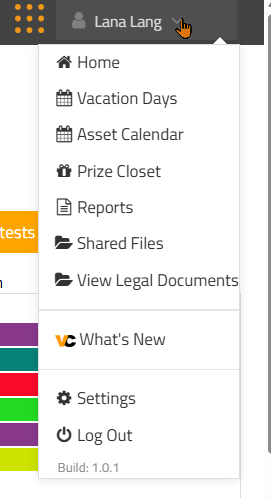
Home - if you are on a different page, clicking the Home button will bring you back to your Calendar/Home page.
Vacation Days - vPromotions has a Vacation Days Calendar feature to ensure people are not assigned to a job/task if they will be out of office. Find out more about the Vacation Days feature - HERE
Asset Calendar - vPromotions has an Asset Calendar feature to help ensure your equipment isn't double booked or to save an equipment item. Find out more about the Asset Calendar feature - HERE. If you don't see the Asset Calendar in your dropdown and you would like it, please contact the vCreative Support Team and ask them to turn it on.
Prize Closet - depending on your abilities in vPromotions, you may have access to the Prize Closet, where you can create or edit prizes and prize packages.
Reports - vPromotions has several different reports available. The reports visible in your account depend on your role and permissions. For a full list of all the reports and their details click - HERE
Shared Files - the Shared Files feature in vPromotions is a tool where your team can store files in an easily accessible location. You may want to store commonly used files here, such as a company logo, general release form, or contest rules. To find out more about the Shared Files feature click - HERE
View Legal Documents - this feature is similar to the Shared Files feature, however it is designed so corporate firms in vPromotions can add/share legal documents with the child firms.
What's New - this is the link to bring you to all the most recent updates in vPromotions.
Settings - this link takes you to your available settings. The Settings you have access to are role/ability based. There are three possible tabs back in settings. The USER TAB, the FIRM TAB and the vPromo TAB. Use those links to find out more about each tab.
Log out - this is the option to log out of your account. It is recommended to log out of your account each rather than to only close the tab you have vPromotions open in. - Home - the Home tab is the tab that will bring you back to the home/calendar view if you are in a different tab.
- Campaigns - the Campaigns tab is where you can view any current Campaigns and add sub-PRFs to them. For more information on the Campaigns feature click - HERE
- Plays - the Plays tab on the Home/Calendar page is where you can view and manage any scheduled Plays. In vPromotions, the term ‘play’ refers to any scheduled contest time. For example, if you have a daily trivia feature at 7:15 a.m. and give away a gift card during that feature, you would create a Play at 7:15 a.m. to assign the prize and winner. To find out more about the Plays tab on the Home/Calendar page click - HERE
- Liners - the Liners tab on the Home/Calendar page is where you can view and manage any scheduled liners, along with several other actions. For an overview of the Liners tab on the Home/Calendar page click - HERE
- On Air - the On Air tab is where your On Air staff will access what they need to do during their shift. In the On Air tab your team will mark liners as being read, assign winners to plays, mark Feature copy as being read and access unscheduled static/PSA liner copy and mark it as being read. For a full recorded On Air training session click - HERE
- Digital - the Digital tab provides visibility into jobs and tasks designated for digital use. The Digital tab was designed for visibility for just jobs/tasks which are deemed for digital usage. For a full recorded training session for Digital tasks click - HERE
- Front Desk - the Front Desk tab is for prize distribution. When winners come in to collect a prize, your Front Desk team can use this tab to look up their information. For a full recorded training on the Front Desk tab click - HERE. Inside the Front Desk is also where the Electronic Signed Documents feature lives. The Electronic Signed Documents feature allows you to send an email to your winners with their paperwork embedded for digital signing. For a full recorded training on the Electronic Signed Documents feature click - HERE
- My PRFs - the My PRFs tab will hold a list view of only the PRFs that you created or were assigned to. For more information on the My PRFs tab click - HERE
- Sponsorships - vPromotions has a Sponsorships feature, where your managers can create any upcoming sponsorship opportunity. This Sponsorships tab is where those opportunities are housed for your sales team to access/view/sell them. For a full recorded training on Sponsorships click - HERE
- Features - the Features tab is where your managers can create your on air or digital features. You can even create sponsorship opportunities for your Features without creating a PRF. For a full recorded training on Features click - HERE. You can also use the Features tab to create digital Features. For more information on digital Features click - HERE
- Proposals - the Proposals tab is where you can view any proposal in an active state. Proposals are part of the Idea/Proposal Workflow feature, which is a pre-PRF feature where your AEs can submit an idea to you for a client and you provide a proposal to your AEs to then present to their client. For a full recorded training on the Idea/Proposal Workflow click - HERE
- Tasks - the Tasks tab will house any job/task you have been assigned to do. For managers, this is also where you can manage all assigned tasks. For a full recorded training on the Jobs/Tasks feature in vPromotions click - HERE
- Blogs - the Blogs tab displays blog communications in a convenient list view. It includes the posting date, author, PRF title, station, client, PRF start and end dates, and available actions. You can mark a blog as read or unread from the Actions column. Clicking on the PRF title will bring you to the details view of the PRF where you can respond to the blog if needed.
- Today - if you are looking at a different time view on your calendar, the Today button will bring you back to the current day.
- The back arrow - the back arrow button allows you to move backwards to a different week or month views on your calendar.
- The forward arrow - the forward arrow button allow you to move forward to a different week or month views on your calendar.
- Jump to Calendar - the Jump to Calendar icon allows you to select a specific date to view.
- +New PRF - the +New PRF button is visible only if you have the proper abilities. This is how you create a new PRF form. After selecting the +New PRF button, choose the appropriate category and complete the form. Once you save the PRF, it will appear on the calendar and enter the applicable approval process. It will also be visible in the list view of your PRFs in your My PRFs tab (#14).
- +NEZ - the +NEZ tab will be visible only for manager roles. NEZ is the abbreviation for No Event Zone. Managers can create a No Event Zone if there are days or partial days coming up where no one will be available to work an event. If a manager creates an NEZ, AEs will not be allowed to create events during that time period. Find out more about No Event Zones - HERE
- Quick Filters - the Quick Filters dropdown is where you can choose a Quick Filter you created to change your calendar view. Be sure to choose the clear filters option to go back to your full calendar view.
- The blue + - The blue + allows you to create Quick Filters. Quick Filters can be created as a tool to help you view specific details on your calendar quickly. To find out more about Quick Filters click - HERE
- Month - the Month button is a filter which will adjust your calendar view to show the full current month.
- Week - the Week button is a filter which will adjust your calendar view to show only the current week.
- 4 Week - the 4 Week button is a filter which will adjust your calendar view to show the current week and the following three weeks.
- Events - the blue Events button is a filter for just the event type PRFs on your calendar. If you don't want to see events on your calendar, you can click that button to hide them/turn events off. If the button is bright blue the filter is on/showing the events. If the button is faded blue the filter is off/hiding the events. NOTE: the filter buttons will remain on or off until you change them. If you don't see something on your calendar it is likely a filter setting.
- Contests - the orange Contests button is a filter for just the contest type PRFs on your calendar. If you don't want to see contests on your calendar, you can click that button to hide them/turn contests off. If the button is bright orange the filter is on/showing the contests. If the button is faded orange the filter is off/hiding the contests. NOTE: the filter buttons will remain on or off until you change them. If you don't see something on your calendar it is likely a filter setting.
- Content - the green Content button is a filter for just the content type PRFs on your calendar. If you don't want to see content on your calendar, you can click that button to hide them/turn content off. If the button is bright green the filter is on/showing the content. If the button is faded green the filter is off/hiding the content. NOTE: the filter buttons will remain on or off until you change them. If you don't see something on your calendar it is likely a filter setting.
- Blue Funnel Filter - the Blue Funnel Filter has some additional filtering options for your calendar view. There is a Search tool, where you can type the name of a PRF to narrow your calendar view to find that PRF. The Sub-PRFs option allows you to hide or display Campaign sub-PRFs. (#8). The Stations filter allows you to turn off/on stations based on what you want to see on your calendar view. The Statuses button allows you to turn off/on PRF Statuses based on what you want to see on your calendar view (we recommend selecting all except Denied and Canceled). The Category button allows you to turn off/on PRF Categories based on what you want to see on your calendar view (we recommend leaving all categories selected unless you need to narrow the calendar to specific jobs or tasks). NOTE: the filter buttons will remain on or off until you change them. If you don't see something on your calendar it is likely a filter setting.
- +New Idea - you MIGHT have a +New Idea button in this location. It will populate only if you are a sales person and your firm has the Idea/Proposal feature turned on in your Firm Settings. This is how AE's will fill out an idea to submit to managers to request a proposal as part of the Idea/Proposal workflow. To find out more about the Idea/Proposal Workflow click - HERE
- Viewing Dates - the Viewing Dates listed in this location are the dates you are currently viewing on your calendar.
- New Applicants Notification - you MIGHT have an icon here that looks like a person with a red number over it. It will populate only if you have Human Resources and Firm Admin ability in vPromotions AND only if there is a new user who has applied for an account in your firm. When a new team member creates a vPromotions account, the account is first reviewed by vCreative staff. It is then sent to the appropriate people in your market who have Human Resources and Firm Admin permissions for local approval. If you see the New Applicants notification, click the icon to open the New Applicants section in Settings, where you can approve or deny the account. Once the account is approved you can move forward with adjusting the user to the proper abilities in the people tab in settings. Here is more information about - New Applicants and here is more information on the - People Tab
If you have any questions, please contact the vCreative Support Team by emailing support@vcreativeinc.com or calling 800-605-9889.