![vCreative_Logo_RGB.png]](https://vcreativeinc.com/hs-fs/hubfs/vCreative_Logo_RGB.png?width=200&height=38&name=vCreative_Logo_RGB.png)
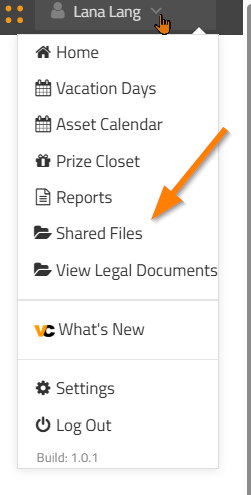
To access the Shared Files feature, hover over your name in the upper-right corner of your vPromotions account and select Shared Files.
Uploading a File
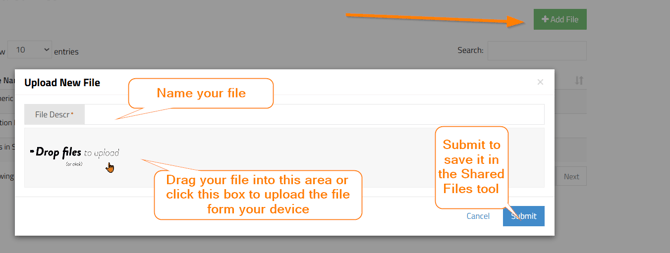
From the Shared Files page, select + Add File to upload a file your team may need to access.
You can upload a file in either of the following ways:
- Drag and drop the file into the upload area.
- Select the upload area to choose a file from your device.
Enter a name or description for the file in the File Description field.
When you are finished, select Submit to save the file.
Managing Shared Files
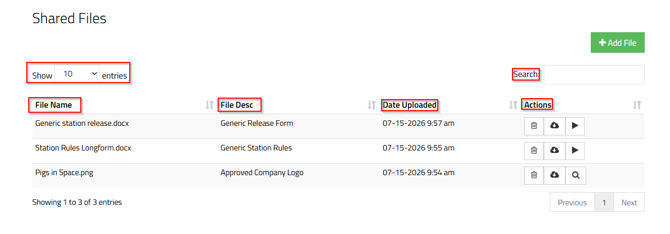
The Shared Files list displays all files that have been uploaded for your team. The columns can be sorted by selecting the up or down arrows beside a column heading.
File Name
The File Name column displays the original name of the uploaded file.
File Descr
The File Description column displays the name or description entered when the file was uploaded.
Date Uploaded
The Date Uploaded column displays the date and time the file was uploaded.
Actions
The Actions column contains several options for managing a file:
- Select the trash can icon to delete the file.
- Select the download icon to download the file.
- Select the view icon to preview supported image files.
- Select the play icon to play supported audio files.
Searching and Navigating the File List
Use the Search field to quickly locate a file in the list.
Use the Show entries menu to control how many files appear on each page.
When the file list contains multiple pages, use the page navigation controls to move between them.
If you have any additional questions, please contact the vCreative Support team. Email support@vcreativeinc.com or call 800-605-9889.