![vCreative_Logo_RGB.png]](https://vcreativeinc.com/hs-fs/hubfs/vCreative_Logo_RGB.png?width=200&height=38&name=vCreative_Logo_RGB.png)
What’s New
Traffic Notes Link in List View -
-
-
vPPO now offers a Traffic Notes link in the Files column of the List View, so users can view and add Traffic Notes without opening the order.
-
Account Executive List View Includes Special Instructions Panel -
-
-
Account Executives now have the ability to display the Special Instructions panel in the List View through a setting in their My Account Settings.
-
Issues Resolved
-
- Spots or revisions with all required fields completed would sometimes incorrectly trigger a "missing detail" warning. Now the validation for missing information correctly displays only when required information is missing.
- When performing a Revision, the Submit button could appear on top of the Blog pop-up window. The Submit button now correctly displays during Revisions.
- Customers with “Read Only Active” status were getting locked out of spots they were trying to revise. Now, switching between different spots on an order while performing Revisions no longer causes incorrect spot locking.
Traffic Notes Link in List View
A "Traffic Notes" link or "Add Traffic Notes" link will appear in the list view Files column, allowing you to view or add new Traffic Notes without opening up the spot.
How it works
-
- In the List View, locate the Files column.

- If Traffic Notes were added during order entry, the link displays as "Traffic Notes."
- Clicking the link opens a panel to display the Traffic Notes.
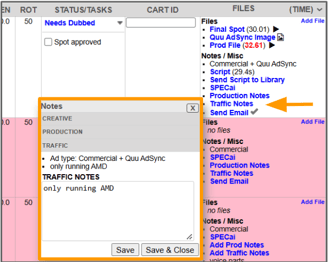 If no notes were added, the link displays as "Add Traffic Note." Click the link to open the notes field.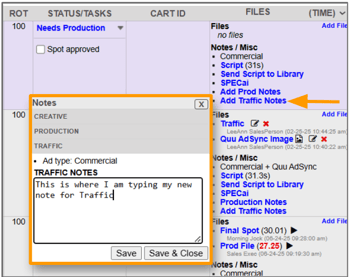
Enter your comments, such as instructions for rotation, contracts, or dates, and Save, or Save and Close. The note saves without leaving the List View, and the entry is recorded in the order history.
- In the List View, locate the Files column.
Scope and Limitations
Traffic Notes and Add Traffic Notes links are visible to all roles in the List View.
Why it helps
-
- Removes extra clicks by letting users add or review Traffic Notes without opening the order.
- Makes Traffic Notes visible from the list even when none were entered at order entry, so instructions are easier to catch.
Special Instructions Panel Available for Account Executives
vPPO offers a setting so that Account Executives can display the Special Instructions panel in their List View. Once enabled, the Special Instructions, including Ad Type, required Approvals and Traffic or Production notes.
How it works
-
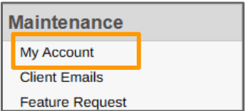
- Open My Account in the Maintenance section of your left navigation panel.
-
- Locate the new “Show Special Instructions” checkbox directly above the Collapse Special Instructions box in Site Options, PO, and select it.
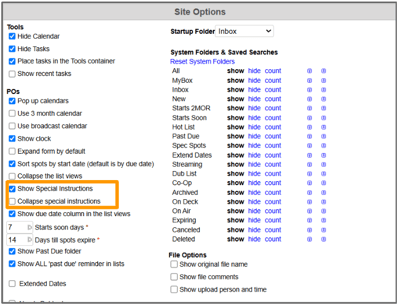
-
- Scroll to the bottom of the page and click Submit.
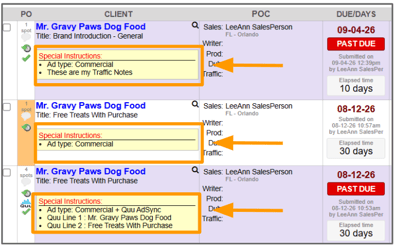
- Your List View will now display the Special Instructions Panel just below the Client Name and Title.
-
- To remove the Special Instructions Panel, return to My Account, remove the checkmark next to this setting and Submit.
Scope and Limitations
-
- The new checkbox selection is visible to all roles inside their My Account settings.
- By default, the setting will not be selected for Account Executives and selected for all other roles.
Why it helps
-
- Gives Account Executives the option for the same at-a-glance order context the rest of the team has by default, without opening each spot individually.
- Provides the flexibility to keep the panel hidden for a traditional view, based on individual user preferences.
Need help? To learn more or if you have any questions, contact the vCreative Help Desk.