![vCreative_Logo_RGB.png]](https://vcreativeinc.com/hs-fs/hubfs/vCreative_Logo_RGB.png?width=200&height=38&name=vCreative_Logo_RGB.png)
From managing company information to controlling order entry, assignments, and approval requirements, these settings help tailor the platform to your organization's needs.
Administrators can use Firm Settings to:
- Update company information and contact details.
- Configure automation and traffic systems.
- Manage production assignments and workflow options.
- Customize the fields displayed on Quick Orders.
- Set requirements for scripts, files, and approvals.
- Control how spots are copied, revised, extended, and archived.
Important: Changes to Firm Settings may affect workflows across your organization. Review settings carefully before making adjustments. Please see the Best Practices below.
Firm Settings are located in the Maintenance section in your left side navigation IF you are a local admin.
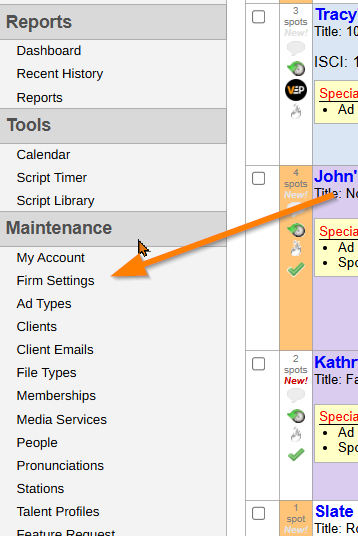
Firm
The Firm page allows local administrators to manage company information, configure system preferences, and customize production workflows.
The page is broken down into three sections.
-
Site Profile which consists of a variety of options, including:
Firm Profile
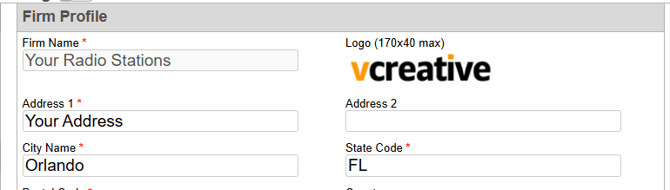
The Firm Profile section contains your company's basic information, including:
- Company address
- Phone number
- Time zone
- Date format
- Company contact information
Review this information periodically to ensure your company details remain accurate.
Site Profile
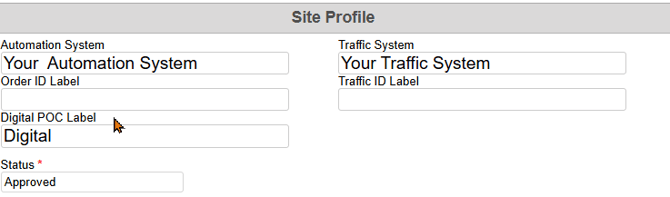
The Site Profile section contains settings related to your company's systems and order identification.
| Setting | Description |
|---|---|
| Automation System | Select the automation system your company uses to air audio. |
| Traffic System | Select the traffic system your company uses to schedule and manage commercials. |
| Order ID Label | Customize the Order ID label displayed in Quick Orders. |
| Traffic ID Label | Customize the traffic identification label displayed in the Cart ID field in List View. |
| Status | This setting can only be modified by vCreative personnel. |
Options
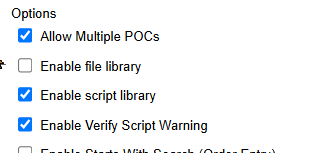
The Options section contains settings that control how your team creates, processes, and manages production orders.
You will see in the product the options are together in one section. For easier reference, these options are grouped below by their primary function.
General Settings and User Permissions
| Setting | Description |
|---|---|
| Allow Multiple POCs | Allows multiple Points of Contact (POCs) to be assigned to a role, such as Producer or Dubber. |
| Enable File Library | Enables the storage of files for future use. |
| Enable Script Library | Enables scripts to be saved and reused. |
| Enable Verify Script Warning | Allows producers to verify that a script is accurate. This is typically used for agency-related workflows. |
| Enable Starts With Search (Order Entry) | Uses a "starts with" search when looking up client names. This can improve search efficiency for companies with large client lists. |
| Assignment POC Count, Do Not Include Spot Review | Displays assignment counts for POCs without including Spot Review assignments. |
| Use a Rich Text Editor for Editing Quick Order Scripts | Enables additional script formatting options beyond standard plain text. |
| Restrict Stations to Outsourced Firm | Limits station selection to stations associated with the selected internal or outsourced firm when users have access to multiple markets. |
| Allow Salespeople to Outsource Work | Allows salespeople to create orders for production in multiple markets. |
| Allow Salespeople to Assign Cart IDs | Allows salespeople to assign Cart IDs to spots. |
| Limit Searches to POs Where Person Is a POC | Restricts search results to production orders where the user is listed as a Point of Contact. |
| Show Quick Search Interface | Enables searches for similar orders based on the selected spot. Search results are limited by ad type category. |
| Offer Production Services | Enables production services for the firm. This setting is required in most configurations, with exceptions for certain production house clients. |
Assignment and Delegation Settings
These options determine which assignment fields appear and how responsibilities can be delegated.
| Setting | Description |
|---|---|
| Only Show Managers in Producer List | Limits the Producer selection list to users designated as managers. |
| Show Dub Delegation (in the POC Column) | Displays the Dub assignment field in the POC column, allowing delegators to assign dubbers. |
| Show Digital Delegation (in the POC Column) | Displays the Digital POC assignment field in the POC column. |
Spot Management and File Options
| Setting | Description |
|---|---|
| Lock Archived Spots (Read-Only) | Prevents users from editing archived spots. |
| Allow Read-Only Active Users to Add Spots to Read-Only Orders | Allows users with read-only access to add a spot to an order which is locked for editing due to the read-only access. |
| Require Stations on Spec Spots | Requires a station to be selected when creating a spec spot. |
| Capture Monetary Value on Sold Spec Spots | Requires the sale amount to be entered when a spec spot is sold. |
| Require File Type When Uploading | Requires users to select a file type when uploading files. |
| Allow File URLs When Attaching Files | Allows users to attach files using URLs instead of uploading the files directly. |
Copy, Revision, and Extension Settings
These settings determine how the system handles existing spots when they are copied, revised, or extended.
-Extending and Revising Spots
| Setting | Description |
|---|---|
| When Extending an Active Spot, Copy to New Spot | Creates a new spot when an active spot is extended rather than simply updating the existing spot. |
| When 'On Air', Also Copy to New Spot (Extend) | Creates a new spot when extending a spot whose run dates are currently active. |
| When Revising an Active Spot, Copy to New Spot | Creates a new spot when revising an active spot instead of modifying the existing spot. |
| When 'On Air', Also Copy to New Spot (Revise) | Creates a new spot when revising a spot whose run dates are currently active. |
| When Creating New Spots via Extend/Revise, Also Create New Production Order | Creates a new production order during the extend or revise process. The original spot is marked as Replaced. |
-Resetting Assignments and Cart IDs
| Setting | Description |
|---|---|
| When Revising/Extending Spots, Reset Assignments | Clears existing POC assignments when spots are revised or extended. |
| When Revising Spots, Reset the Cart | Clears the existing Cart ID when a spot is revised. |
| When Extending Spots, Reset the Cart | Clears the existing Cart ID when a spot is extended. |
| When Copying Spots, Reset Assignments | Clears existing POC assignments when a spot is copied. |
-Clearing Fields When Copying Spots
These options determine which information is cleared when an existing spot is copied.
| Setting | Description |
|---|---|
| When Copying Spots, Reset Prod Notes | Clears the Production Notes field. |
| When Copying Spots, Reset Traffic Notes | Clears the Traffic Notes field. |
| When Copying Spots, Reset Digital Notes | Clears the Digital Notes field. |
| When Copying Spots, Reset the Music Bed Field | Clears the Music Bed field. |
| When Copying Spots, Reset the Script Field | Clears the Script field. |
Tip: These settings are useful when copied spots should retain some information from the original while requiring new assignments, scripts, or production details.
Automatic Status Updates
Automatic status settings allow the system to advance workflow statuses when files of designated types are uploaded.
| Setting | Description |
|---|---|
| Auto-Advance Writing Status on Upload if File Type Is... | Select a file type that will automatically advance the writing status when a matching file is uploaded. |
| Auto-Advance Production Status on Upload if File Type Is... | Select a file type that will automatically advance the production status when a matching file is uploaded. |
| Auto-Advance Digital Status on Upload if File Type Is... | Select a file type that will automatically advance the digital status when a matching file is uploaded. |
Tip: These options can reduce manual status updates by allowing the system to recognize completed workflow steps based on uploaded file types.
Co-op Script Settings
These options control how scripts are displayed and required for co-op spots.
| Setting | Description |
|---|---|
| Always Show Co-op Script Format for Co-op Spots | Automatically displays the co-op script format for spots designated as co-op. |
| Show Script Field with Co-op Flag | Displays the Script field when the Co-op option is selected in Quick Order. |
| Require a Script on Co-op Spots | Requires a script for spots designated as co-op. |
Required Fields
The Required Fields options allow administrators to specify which information must be provided during Quick Order entry or other stages of the production workflow.
-Available Requirements
| Setting | Description |
|---|---|
| Require Traffic Fields Early in Process | Requires traffic-related information earlier in the production workflow. |
| Order Number | Requires an Order Number. |
| Contract Number | Requires a Contract Number. |
| Spot Title | Requires a Spot Title. |
| ISCI Code | Requires an ISCI Code. |
| Cart ID | Requires a Cart ID. |
| Require Final Spot on Dub Only Spots | Requires a Final Spot file for orders designated as Dub Only. |
| Verify Station(s) Against the Ad Type | Validates selected stations against the ad type. |
Important: Enabling required fields may prevent users from completing certain workflow steps until the necessary information is entered.
Quick Order Field Visibility
These options allow administrators to simplify the Quick Order by hiding fields that are not needed for their organization's workflow.
-General Field Visibility
| Setting | Description |
|---|---|
| Disallow Today as Start Date on New Spots | Prevents users from selecting the current date as the start date for new spots. |
| Hide Final Spot | Hides the Final Spot field. |
| Hide Run Dates | Hides the Run Dates fields. |
| Hide Advertiser Number | Hides the Advertiser Number field. |
| Hide Estimate Number | Hides the Estimate Number field. |
| Hide Copy Group | Hides the Copy Group field. |
| Hide Lines | Hides the Lines field. |
| Hide Campaign ID | Hides the Campaign ID field. |
| Hide ISCI Code | Hides the ISCI Code field. |
| Hide Spot Title | Hides the Spot Title field. |
| Hide Music Bed Filename | Hides the Music Bed Filename field. |
| Hide Unit Tracking | Hides the Unit Tracking option. |
-Creative and Approval Field Visibility
| Setting | Description |
|---|---|
| Hide Creative Goals | Hides the Creative Goals section in Quick Order. |
| Hide Creative Style | Hides the Creative Style section in Quick Order. |
| Hide Sold (Sold/Spec) | Hides the Sold option from the Sold/Spec selection. |
| Hide Spec (Sold/Spec) | Hides the Spec option from the Sold/Spec selection. |
| Hide Other (Sold/Spec) | Hides the Other option from the Sold/Spec selection. |
| Hide Script Approval Option | Hides the Script Approval option. |
| Hide Spot Approval Option | Hides the Spot Approval option. |
-Additional Workflow Field Visibility
| Setting | Description |
|---|---|
| Hide Needs Dubbed Status on Drafts | Hides the Needs Dubbed status option for draft spots. |
| Hide Copy to Media | Hides the Copy to Media option. |
| Hide Air Check | Hides the Air Check option. |
| Hide Email Spot To | Hides the Email Spot To field. |
Tip: Hiding unnecessary fields can make Quick Order entry easier and reduce confusion for users who do not need every available option.
Additional Quick Order and Workflow Options
The following settings control additional Quick Order fields, default approval requirements, and production workflow behavior.
-Workflow and Display Options
| Setting | Description |
|---|---|
| Auto Advance Scheduled Spots to Dub List | Automatically moves spots marked as Scheduled to the Dub List. |
| Include Day Part on PO | Displays the Day Part field in Quick Order. |
| Include Tag Flag on PO | Displays the Tag checkbox in Quick Order. |
| Upload Checkbox for Digital Spots | Displays the Upload checkbox in the Cart ID section of List View for digital spots. |
| Creative Section on PO | Displays the Creative section in Quick Order. |
-Default Approval Requirements
| Setting | Description |
|---|---|
| Script Requires Approval by Default | Makes script approval required by default for new orders. |
| Spot Requires Approval by Default | Makes spot approval required by default for new orders. |
| Require Email on Script/Spot Approval Required | Requires an email notification when script or spot approval is required. |
Script and Search Configuration
These settings provide additional customization for scripts, voice tracking, and production order searches.
| Setting | Description |
|---|---|
| Imaging/Voice Tracking Search | Adds additional filters to the Voice Pool Search. |
| Script Option | Determines how scripts can be added to orders. Available choices include Attach as File Only, Type In Script Only, or Both. |
| Script Read Speed (Adjusted WPM) | Sets the adjusted words-per-minute value used for script timing calculations. The calculation accounts for word length, rather than treating every word equally. |
| Spec Spot Label | Allows administrators to customize the label displayed in the Cart ID field for spec spots. |
| Max ISCI Field Length | Sets the maximum number of characters allowed in the ISCI Code field in Quick Order. |
| Unique File ID Configuration | Provides options for configuring distinct file identifiers and naming conventions. |
| Creative Notes Template | If there is a template you would like to pre populate in the creative notes section when creating a new order, enter those details in this field. |
Understanding Adjusted Script Read Speed
The Script Read Speed (Adjusted WPM) setting helps determine estimated script duration.
Unlike a standard word count, adjusted WPM takes word length into consideration. Short words contribute less to the adjusted count, while longer words contribute more.
For example:
- "I run" may count as one adjusted word.
- "Rhinoceros" may count as two adjusted words.
The reference value shown in the original setting is 222.0 WPM.
This allows the script timer to provide an estimated reading duration based on the adjusted word count.
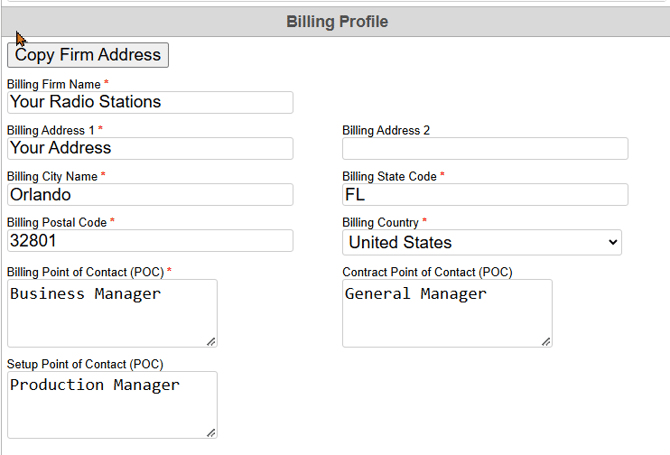
Billing Profile
This area includes the editable billing address information as well as editable boxes for the Billing, Setup, and Contract Points of Contact information for your vCreative company account.
Best Practices for Managing Firm Settings
To keep your production workflow running efficiently:
- Review settings periodically. Confirm that your company's information, workflow preferences, and integrations are up to date.
- Consider the impact on your team. Changes to required fields, permissions, and assignments may affect multiple users.
- Keep Quick Orders simple. Hide fields your team does not use while keeping essential information accessible.
- Use automation where appropriate. File-based status advancement can help reduce unnecessary manual updates.
- Review copying and revision settings. Make sure your configuration supports how your team handles revisions, extensions, and new production orders.
Need assistance? If you are unsure how a particular Firm Setting affects your workflow, contact vCreative Support before making changes. Call 1-800-669-9889 or email support@vcreativeinc.com.