![vCreative_Logo_RGB.png]](https://vcreativeinc.com/hs-fs/hubfs/vCreative_Logo_RGB.png?width=200&height=38&name=vCreative_Logo_RGB.png)
Getting oriented
Once you log in, your screen is intentionally simplified.
On the left-hand side, you’ll see Voice Requests—this is your main workspace.
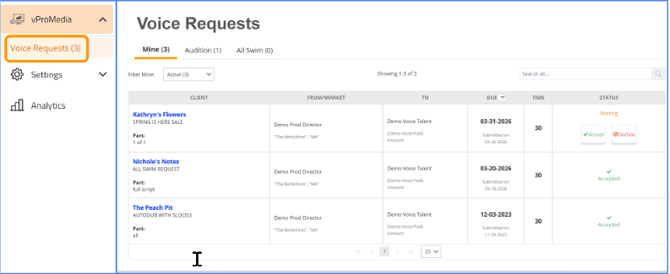
In the center, you’ll find the requests that have been assigned directly to you.
When a new request is sent your way, you’ll also receive an email notification, so you don’t need to stay logged in all day to keep up.
Viewing your assigned requests
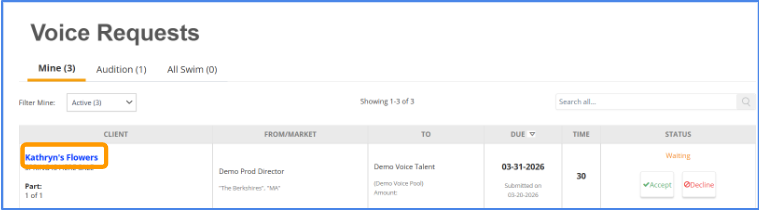
At the top of your request list, you’ll notice a tab labeled “Mine.”
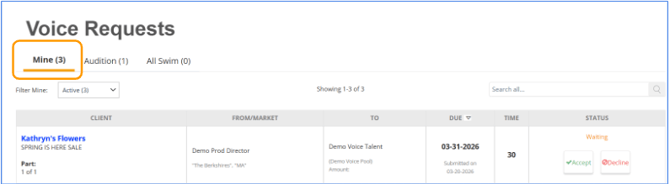
This tab shows all requests that have been assigned specifically to you.
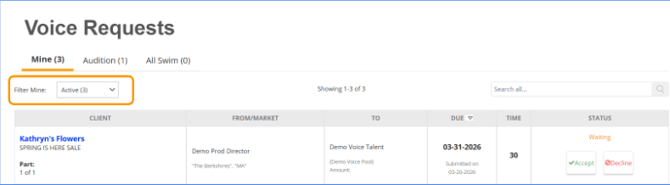
You’ll also want to make sure you’re viewing Active requests so you can focus on what still needs attention.
Each request provides helpful details at a glance, including:
- Client name (clickable to open details)
- Who assigned the request
- Due date
- Spot length
- Status (Waiting, Accepted, etc.)
Before taking action, take a moment to review the due date and urgency.
Deciding whether to accept or decline
When a request first comes in, the status will show as Waiting.
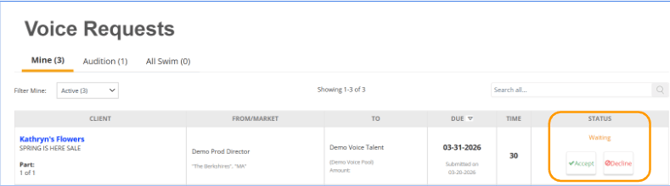
At this point, you have two options:
- If you’re able to complete the work, accept the request
- If you’re unavailable or unable to meet the deadline, decline the request so it can be reassigned
Best practice:
If you plan to complete the request—even later in the day—go ahead and accept it as soon as possible. This lets your team know the work is covered and avoids unnecessary follow-ups.
Reviewing the request details
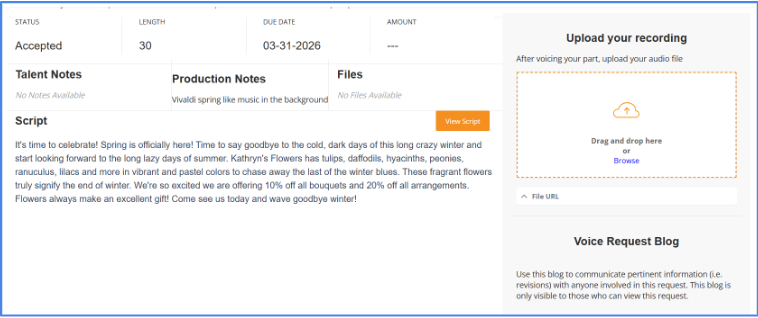
Before recording, review the script and instructions.
To do this:
Click on the client name to open the full request
Inside, you’ll find:
- Script content
- Talent notes or direction (if provided)
- Due date and request details
- Any attached files (if applicable)
Take a moment to read through everything so you understand the expectations before you begin recording.
Communicating with your team (if needed)
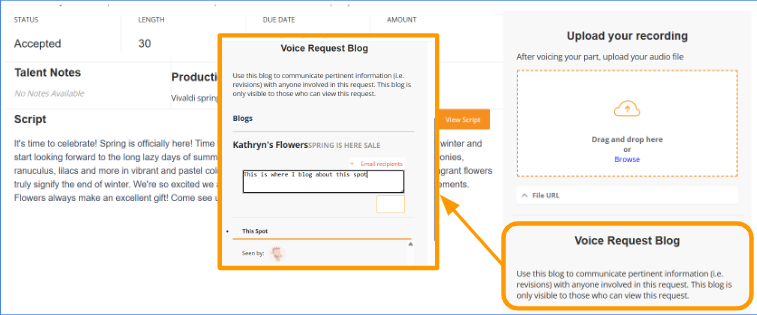
If you have questions or need to provide an update, you can use the Blog section within the request.
Add a blog message to:
- Ask questions about the script
- Let the team know if you’ll complete it later
- Provide any additional context
This keeps all communication tied directly to the request and visible to everyone involved.
Recording and uploading your audio
Once you’re ready:
- Record your audio based on the script and instructions
- Return to the request
Then:
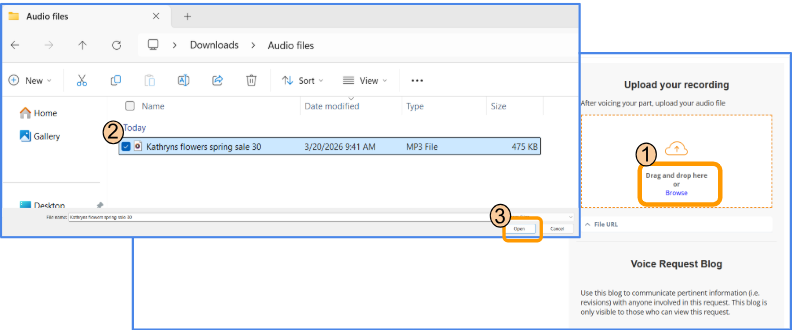
Drag and drop your audio file into the upload area
—or—
Click to browse and upload your file
You can upload multiple files if needed.
Finalizing your request
After your file is uploaded, your part is essentially complete.
As a best practice:
Add a quick blog note (for example: “Voice work uploaded”)
This notifies the team and confirms that your portion is finished.
Once uploaded, the system automatically recognizes the request as completed, and it will no longer appear in your active list.