![vCreative_Logo_RGB.png]](https://vcreativeinc.com/hs-fs/hubfs/vCreative_Logo_RGB.png?width=200&height=38&name=vCreative_Logo_RGB.png)
This article provides an overview of the List View on the vPromotions Home page. You may wish to zoom in to view the accompanying image more clearly.
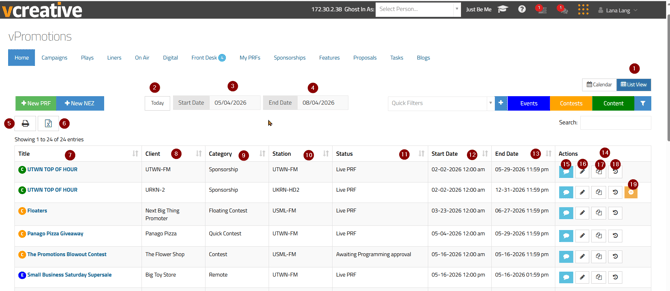
- List View
Select the List View button to display your Home page in List View rather than Calendar View. When the button is blue, List View is active. To return to Calendar View, simply select the Calendar View button. - Today
The Today button displays all PRFs with scheduled dates that include today’s date. - Start Date
To view all PRFs within a specific date range, use the calendar dropdown in the Start Date field to select the beginning of the date range. - End Date
Use the calendar dropdown in the End Date field to select the end of the date range you would like to view. - Print
Select the Print button to print the list of PRFs displayed for today or for the selected date range. - Excel
Select the Excel button to export the list of PRFs displayed for today or for the selected date range. - Title
This column displays the title of the PRF. A category indicator appears to the left of the PRF title:- A green C represents a Content-type PRF.
- An orange C represents a Contest-type PRF.
- A blue E represents an Event-type PRF.
- Client
This column displays the client name associated with the PRF. The Client column can be sorted using the up and down arrows. - Category
This column displays the category associated with the PRF. The Category column can be sorted using the up and down arrows. - Station
This column displays the station for which the PRF was created. If a PRF was submitted for multiple stations, each station will appear on its own line in List View.The Station column can be sorted using the up and down arrows. - Status
This column displays the current status of the PRF for easy review. The Status column can be sorted using the up and down arrows. - Start Date
This column displays the PRF’s start date and time. The Start Date column can be sorted using the up and down arrows. - End Date
This column displays the PRF’s end date and time. The End Date column can be sorted using the up and down arrows. - Actions
The Actions column contains several tools for managing the PRF. - Blogs
Select the blue Blog icon in the Actions column to post or read blog entries associated with the PRF. - Edit
Select the pencil-shaped Edit icon in the Actions column to quickly edit the PRF. - Copy PRF
Select the Copy PRF icon in the Actions column to create a new PRF using information from the existing PRF. - History
Select the History icon in the Actions column to view the PRF’s history. - Other Actions
Additional icons may appear in this location, such as options to cancel or delete a PRF.
For a complete overview of the Home page, including all available tabs, please see the vPromotions Home/Calendar Page article.
If you have questions about this process, please contact the vCreative Support team by emailing support@vcreativeinc.com or calling 800-605-9889.