![vCreative_Logo_RGB.png]](https://vcreativeinc.com/hs-fs/hubfs/vCreative_Logo_RGB.png?width=200&height=38&name=vCreative_Logo_RGB.png)
The Plays tab is located within the details of a contest PRF. The number displayed to the right of the tab indicates how many plays are scheduled for that PRF.
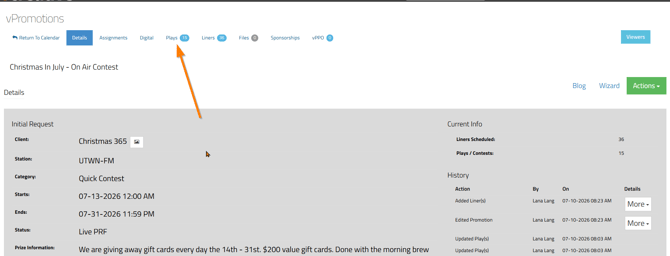
When you select the Plays tab, you will see a list of all scheduled plays associated with the PRF. The PRF name appears in the upper-left corner of the page. In this example, the PRF is titled Christmas in July – On-Air Contest.
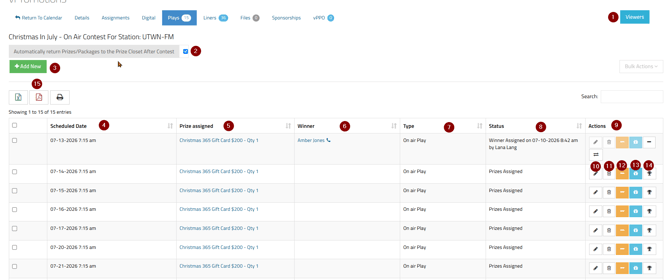
Several tools and columns are available within the Plays view. All columns are sortable.
-
Viewers - The Viewers indicator shows whether anyone else is currently viewing the PRF.
-
Automatically Return Prizes to the Prize Closet - Select this option to automatically return any unassigned prize quantities to the Prize Closet after the PRF’s run dates have ended.
-
+ Add New - Select + Add New to create and schedule additional plays within the current PRF. You can choose the play dates, times, and other scheduling options.
-
Scheduled Date - The Scheduled Date column displays the date and time assigned to each play during the scheduling process.
-
Prize Assigned - The Prize Assigned column displays the prize currently assigned to each play.
Select the prize name to open its record in the Prize Closet. You can edit the prize from this view, although some fields cannot be changed after a winner has been assigned.
To edit a restricted field, such as the prize value, first remove the winner from the play. You can then edit the prize and reassign the winner.
-
Winner - If a winner has been assigned to a play, the winner’s name will appear in this column.
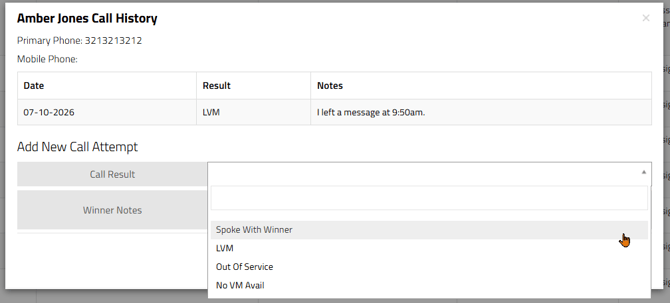
A telephone icon may appear next to the winner’s name. Select this icon to open the Call History feature, where your team can document attempts to contact the winner. After a result and note are entered, they will appear in the call history for other users to review.
An envelope icon may also appear next to the telephone icon. This indicates that an email has been sent to the winner.
- Type - The Type column indicates whether the play was created as an On-Air Play or an Off-Air Play.
- On-Air Play: The play appears on the On Air tab, where on-air staff can assign a winner.
- Off-Air Play: The play does not appear on the On Air tab. Users with a manager role can assign a winner from within the PRF by selecting the trophy icon described in item 14.
- Status -The Status column displays the current status of each play. The status updates as a winner is assigned and the prize is claimed. The status information also includes the name of the user who completed each action and the date and time the action occurred. This column can be sorted.
- ACTIONS. The Actions column contains several tools for managing an individual play.
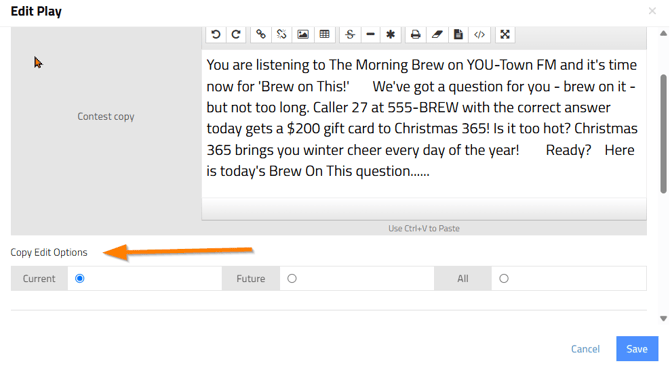
- Actions - Edit. Select the Edit icon to update the on-air copy for the contest. This is the copy that on-air staff will see when the scheduled play appears on their main On Air tab.
When editing the contest copy, you can choose where the changes will apply:
- Current Play: Applies the changes only to the selected play.
- Current and Future Plays: Applies the changes to the selected play and all plays scheduled after it.
- All Plays: Applies the changes to every play within the PRF.
Scroll down within the editing window to update the contest notes. The same application options are available for notes.
- Actions - Delete. Select the trash can icon to delete the selected play.
- Actions - Remove or Assign Prize
Select the yellow or orange box containing a minus sign to remove the currently assigned prize from the play.
After the prize is removed, the icon changes to a plus sign. Select the plus sign to assign another prize to the play.
- Actions - Add Consolation Prize. Select the blue gift icon to assign a consolation prize to the play.
- Actions - Assign Winner.
The trophy icon allows a winner to be assigned directly from within the PRF.
This icon is available only to users with an appropriate manager role.
- Print and Export options. You can export the list of plays to an Excel file or PDF, or print the list.
Bulk Actions
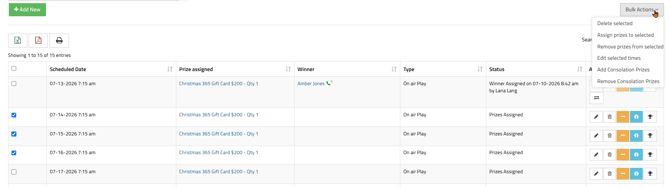
The Plays tab also includes Bulk Actions, which allow you to make the same change to multiple plays at once.
Select the checkbox to the left of each play you want to update. Then select Bulk Actions and choose one of the available options:
- Delete the selected plays.
- Assign prizes to the selected plays.
- Remove prizes from the selected plays.
- Edit the scheduled times of the selected plays.
- Add consolation prizes to the selected plays.
- Remove consolation prizes from the selected plays.
To select every play, select the checkbox to the left of the Scheduled Date column heading. You can then use Bulk Actions to update all selected plays at once.
If you have any additional questions, please contact the vCreative Support team. Email support@vcreativeinc.com or call 1-800-605-9889.