![vCreative_Logo_RGB.png]](https://vcreativeinc.com/hs-fs/hubfs/vCreative_Logo_RGB.png?width=200&height=38&name=vCreative_Logo_RGB.png)
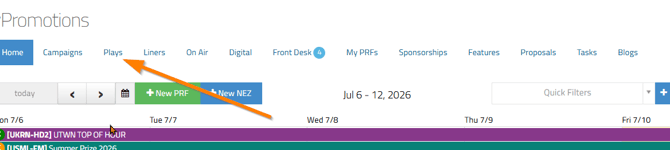
The main Plays tab, located on the Home/Calendar page, allows you to view the plays scheduled for each station you have access to. The colors provide a quick visual indication of each scheduled play’s current status.
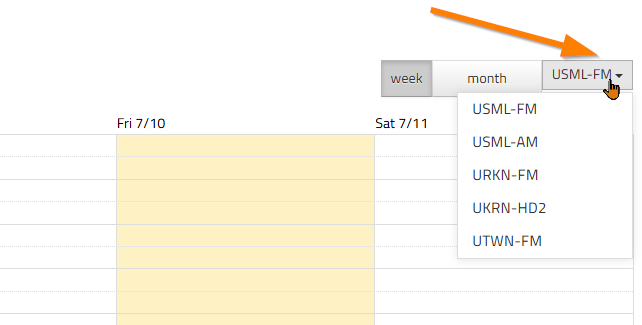
First, confirm that the correct station is selected in the Stations filter. You can also choose to view the calendar by week or by month.
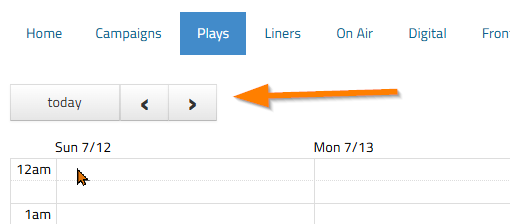
Use the forward and backward arrows to move between weeks or months. Select the Today button to return to the current date.
Once you have selected your preferred view, you can see scheduled plays on the calendar and time grid. The plays may appear in different colors depending on their current stage in the workflow.
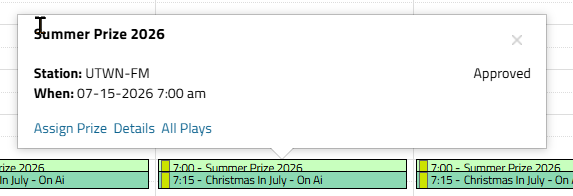
Select a play to open a popover containing additional information about the play, including its status and the meaning of its color. Depending on the play’s status, additional actions may also be available.
1. Light green.
Light green indicates an Approved status. The play has been successfully created, but a prize has not yet been assigned.
From the popover, you can assign a prize, view the PRF details, or select All Plays to view all plays associated with the PRF.
2. Green.
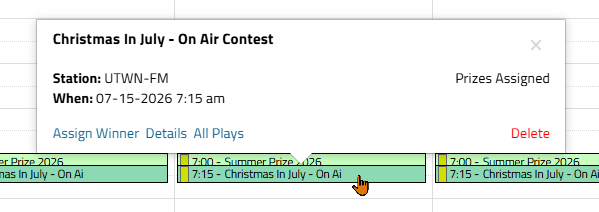
Green indicates that a prize has been assigned, but a winner has not yet been selected.
From the popover, you can assign a winner, view the PRF details, or select All Plays to view all plays associated with the PRF. You can also remove the play by selecting the Delete button in the lower-right corner.
3. Dark Green.
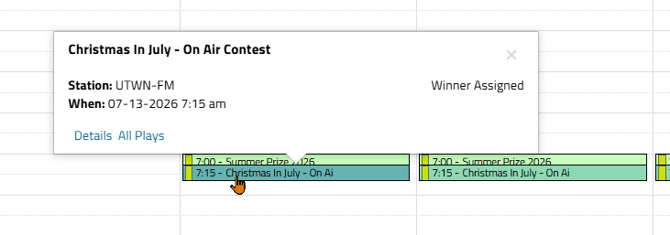
Dark green indicates that a winner has been assigned.
From the popover, you can view the PRF details or select All Plays to view all plays associated with the PRF.
4. White.
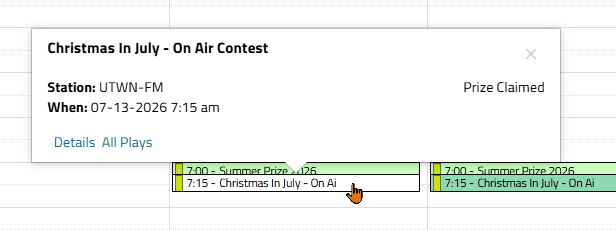
White indicates that the winner has claimed the prize and that the workflow for the winner and prize is complete.
From the popover, you can view the PRF details or select All Plays to view all plays associated with the PRF.
5. Yellow.
Yellow is used specifically for Jackpot prize contests when no winner has been assigned. You can learn more about Jackpot prize contests - HERE.
From the popover, you can view the PRF details or select All Plays to view all plays associated with the PRF.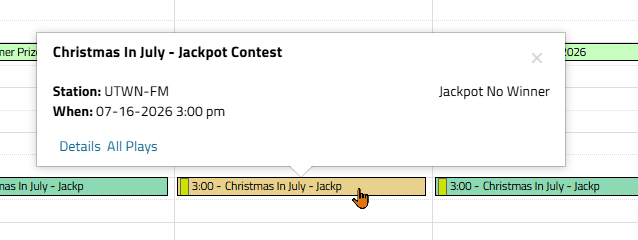
Note: On the date and time grid, you can use your mouse to drag a play to another time slot when the play schedule changes.
If you have any additional questions, please contact the vCreative Support team. Email support@vcreativeinc.com or call 1-800-605-9889.