![vCreative_Logo_RGB.png]](https://vcreativeinc.com/hs-fs/hubfs/vCreative_Logo_RGB.png?width=200&height=38&name=vCreative_Logo_RGB.png)
The Endorsements Campaign Dashboards shows immediately after you save a new Campaign or when you click on a Campaign Title from the Home section.
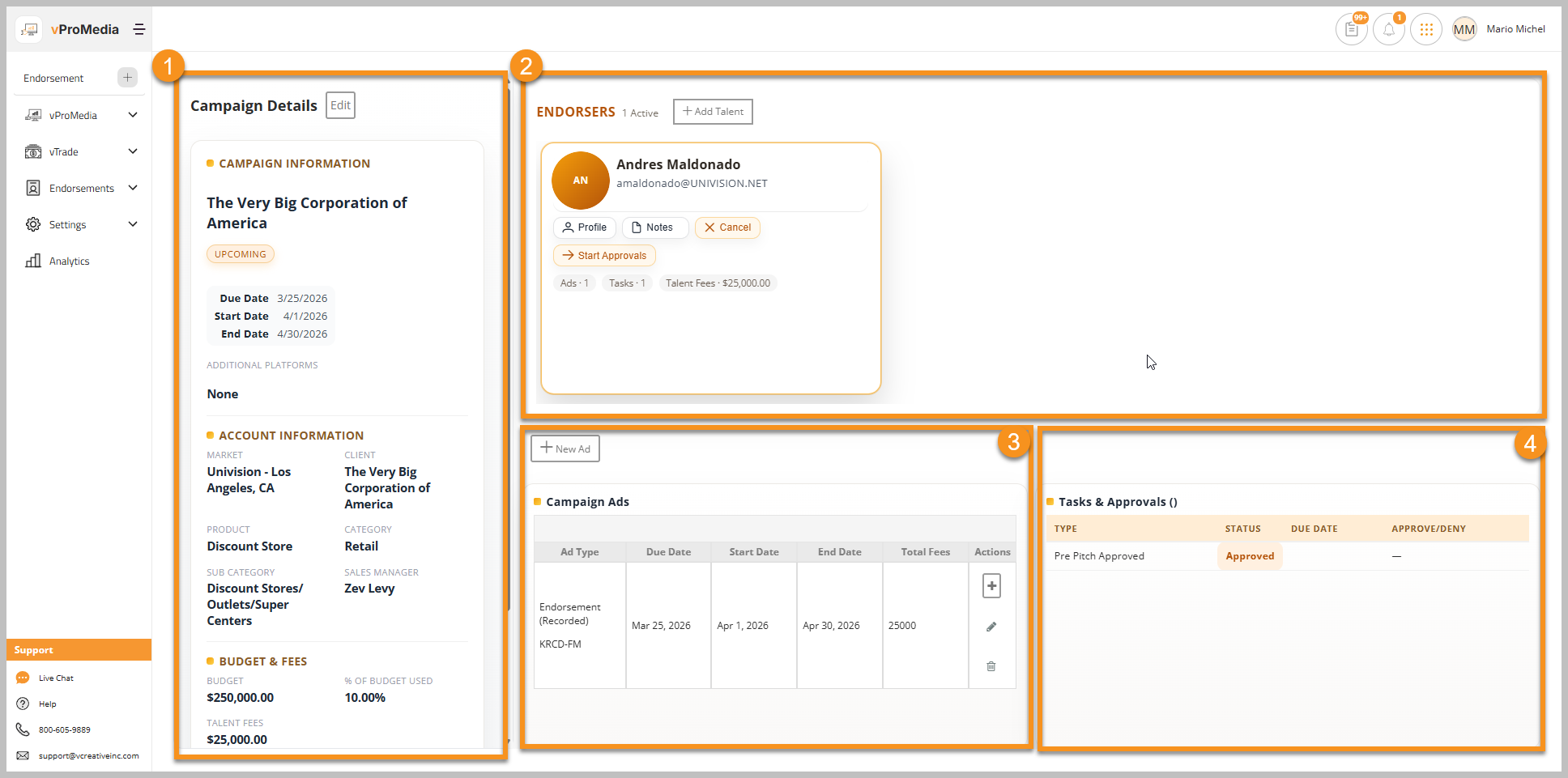
The Campaign Dashboard consists of 4 main areas:
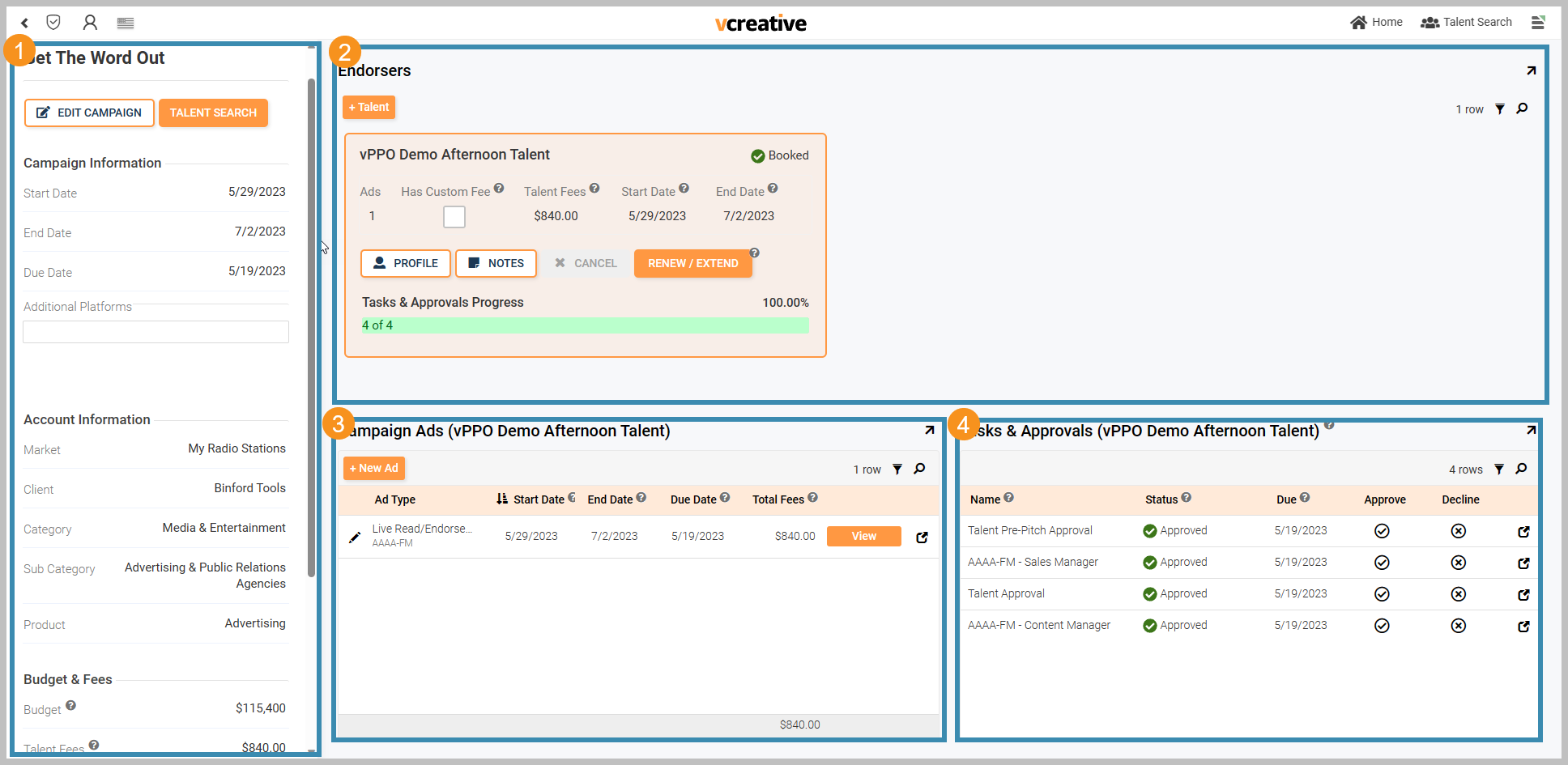
- Campaign Details - On the left side of the dashboard, this is where the details of the campaign live, including the Market, Client, Product, and financial information.
- Endorsers - Each endorser for this campaign shows across the top of the dashboard. When there are more than one endorser, clicking on the endorser shows you ads and approvals for that endorser below. Endorser's tile includes their Talent Profile, Notes, and action buttons:
- Cancel - Removes the Endorseer from the Campaign
- Back - Stops the approval process and allows changes before restarting it.
- Start Approvals - Begins the approval process.
- Book - Sends the approved ads to vPPO for voicing and production.
- Extend Dates/Make Changes - Allows changes to be made to the booked Campaign Ads before restarting the Approval Process.
- Campaign Ads - In the center of your screen at the bottom, Campaign Ads shows a list of ads to run for the selected endorser's campaign.
- + - For adding Station(s) and Contract Numbers
- The pencil icon is for editing the Campaign Ad
- The trash can icon is for deleting a spot
- If the ad has been booked, an arrow icon will take you to the ad in vPPO.
- Tasks and Approvals - On the lower right, this section shows the current approval status of the selected endorser's campaign.