![vCreative_Logo_RGB.png]](https://vcreativeinc.com/hs-fs/hubfs/vCreative_Logo_RGB.png?width=200&height=38&name=vCreative_Logo_RGB.png)
Initially, vPromotions includes a default liner category. That default category will most likely be all you need. However, you can create custom liner slot categories when necessary.
Reminder: Only users with Promotions Manager, Program Director, or General Manager abilities can create liners or custom liner categories. Abilities can be managed in the People Tab, which is available only to Firm Admins. Find out more - HERE
To begin, hover over your name in the upper-right corner of your vPromotions account. Then, select Settings > vPromo > Available Liner Slots. For a complete tutorial on Liner Slots click - HERE
NOTE: Create custom liner slot categories only if you are comfortable setting up liner slots and creating and scheduling liners.
To create a custom liner slot category, go to the New Station Available Slots section on the right side of the page. If you previously created default slot times, this section should look familiar. To create a custom category, enter its name in the Categories field. The category name will appear highlighted and underlined below the field. Select the highlighted name to save the new category.
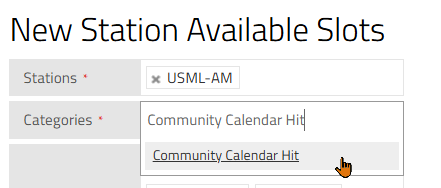
The custom liner slot category will appear in the Categories field and will be saved for the selected station.
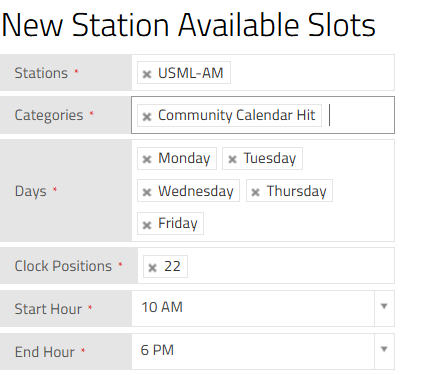
As you may have done when creating the default liner slots, select the appropriate days and times for the custom category. In this example, we are creating a Community Calendar Hit category for USML-AM. The liner will be scheduled on weekdays at 22 minutes past each hour from 10:00 a.m. through 7:00 p.m. After selecting the days and times, click the blue Add button to save the liner category.
Reminder: The selected end hour represents the final full hour in the schedule. For example, to schedule liners through the 6:00 p.m. hour and stop at 7:00 p.m., select 6:00 p.m. as the end hour.
You will receive the following warning:
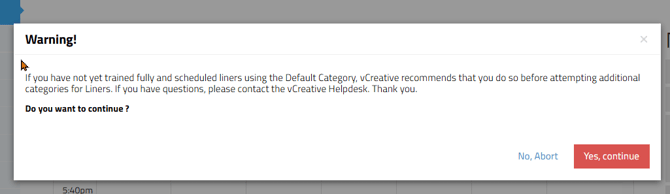
This warning does not prevent you from continuing. It reminds you to confirm that you are comfortable working with custom categories and want to proceed.
After selecting Yes, Continue, the custom liner category will become available in the Slots for: dropdown menu above the grid. Hover over the Slots for field to see the Default category and all custom liner slot categories you have created. Clicking on any of those categories will show you just those category liner slot times on the grid.
NOTE: Use the trash can icon to delete a custom liner slot category.
NOTE: You can manually move slot times on the liner grid.
As a reminder, become familiar with liner slots before creating custom categories. Review the Available Liner Slots tutorial for additional guidance - HERE
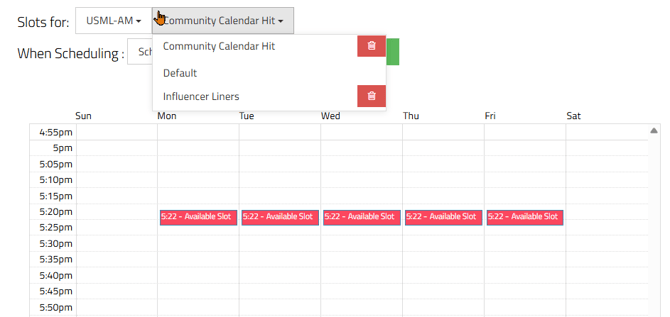
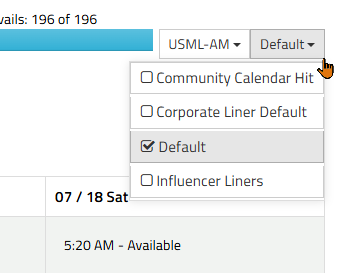
After creating a custom liner slot category, include it in your viewing and creation options on the main Liners tab. From the Calendar page, select the Liners tab to open the liner grid. Then, select the appropriate station and the categories you want to display.
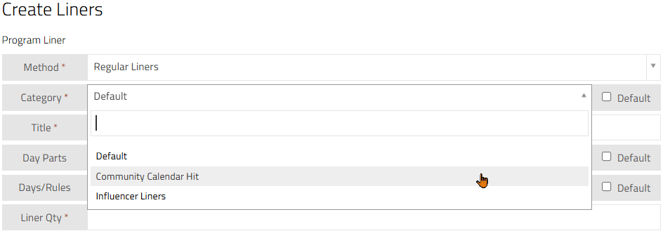
When creating a liner, select the appropriate category. The system automatically selects the Default liner category, so remember to choose the appropriate custom category when necessary.
All scheduled liners, regardless of category, will automatically appear on the On Air tab for your on-air staff. PRF liners will not appear until the PRF is fully approved.
For complete instructions on creating and scheduling liners, review the following tutorials: Priority-Based Liner Scheduling and Legacy Liner Scheduling
If you have any questions, please contact the vCreative Support Team by emailing support@vcreativeinc.com or calling 800-605-9889.