
If you need to edit, unlock, or delete/deactivate existing users in PromoSuite Mail, this can all be done from the Security section in PromoSuite Mail. Access the Security section by clicking on your name in the top-right corner & click on Security.
Edit Users
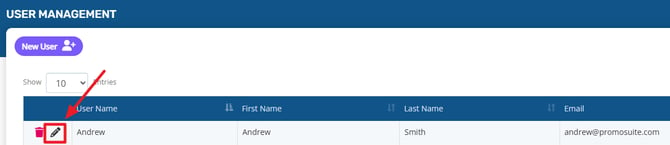
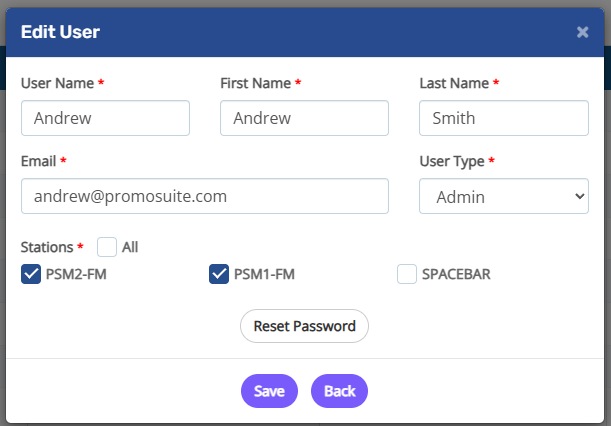
- Click on the Pencil icon to edit a user's profile. You can use this to change their name, email address, station access, level of access, or reset their password.
- Update the fields as needed & then click Save.
- Click OK on the following popup & you're changes are saved.
Unlocking Users
For security purposes, if a user attempts to log in more than 5 times unsuccessfully, they will be locked out of PromoSuite Mail until they are unlocked by an admin.
- From the Security section, any locked users will be highlighted red & have an Unlock button in the last column.

- Click the Unlock button & then in the following pop-up, the Unlock Account option will already be selected. You can also check the box to reset the user's password at the same time.
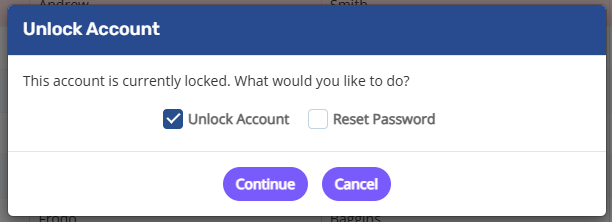
- Once finished, click on Continue, & you will receive a confirmation pop-up to click OK.
Delete/Deactivate Users
If you need to remove a user from PromoSuite Mail, you can either delete the account outright, or deactivate the account if you need to temporarily remove access for any reason.
- In the first column for the users, click on the trash can icon.
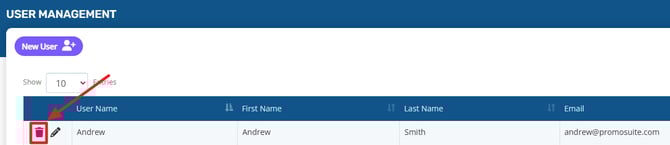
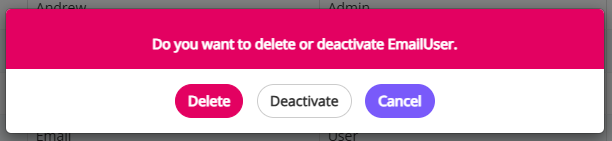
- In the following pop-up, click on Delete or Deactivate as needed.
- You will receive a pop-up confirming the deletion/deactivation to click OK to finish.