To create new users in PromoSuite Mail, follow the steps below.
-
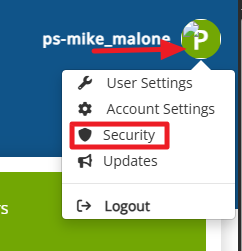
Log into PromoSuite Mail & click on your name in the top-right corner & then click on Security.
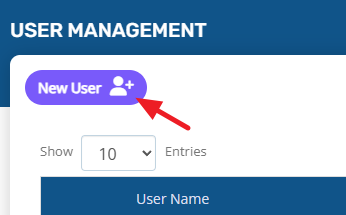
- From the next page, click on New User.
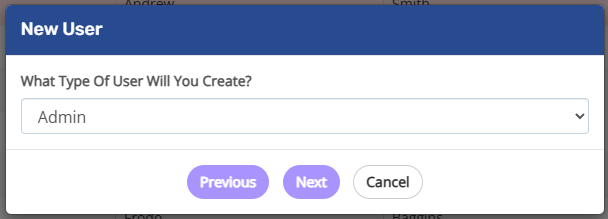
- There are three options available for the level of access for users: Admin, Email and Reporting, & Reports Only. Select the level needed for the new user & then click on Next.
- Admin users will have full access rights to all sections of PromoSuite Mail, including Account Settings & Security.
- Email and Reporting users will have access to creating new templates & emails, as well as the Reports section.
- Reports Only users will have access to just the Reports section
- Fill out the Username, First Name, Last Name, & Email Address for this new user. Leave the Send Initial Password By Email checkbox checked. This will send the user an email with their username & initial password once this is saved.
- Note, if you have PromoSuite Next as well, enter in the same exact information as that user in PromoSuite Next. Once saved, then that user can log into PromoSuite Mail with the same password as they do with PromoSuite Next.
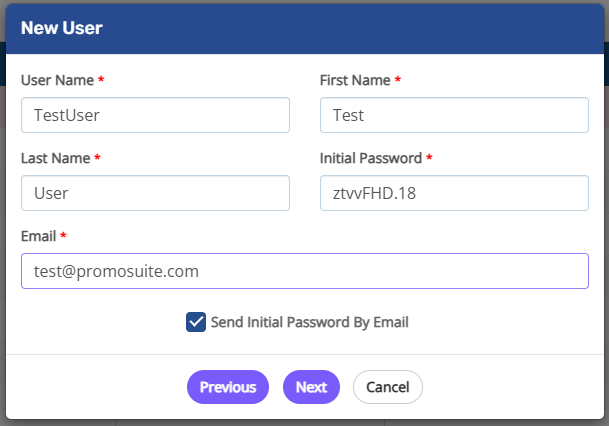
- Note, if you have PromoSuite Next as well, enter in the same exact information as that user in PromoSuite Next. Once saved, then that user can log into PromoSuite Mail with the same password as they do with PromoSuite Next.
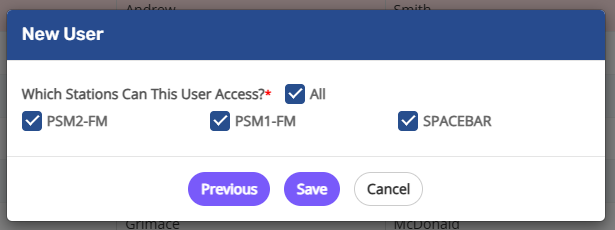
- Check all stations that the user will require access to & click Save.
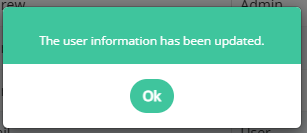
- Once finished, you will receive a pop-up confirming, which you can click OK, & continue adding new users if needed.