![vCreative_Logo_RGB.png]](https://vcreativeinc.com/hs-fs/hubfs/vCreative_Logo_RGB.png?width=200&height=38&name=vCreative_Logo_RGB.png)
Enter a Quick Order
Once you have received copy instructions from your client, you can enter the Production Order (PO) into vProMedia for processing.
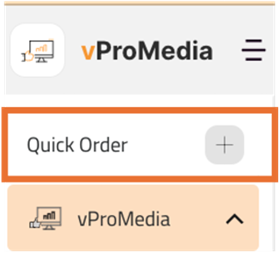
After logging into vProMedia, navigate to the far left side of your screen & click “Quick Order” to begin the PO.
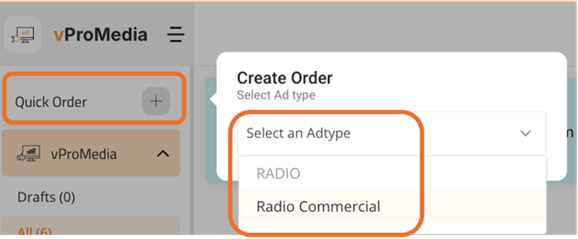
Choose your appropriate Ad Type to begin the entry of the production order.
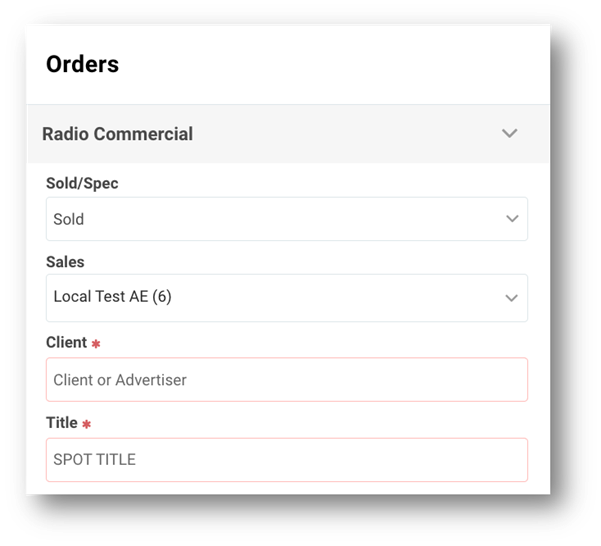
Once the PO opens you can begin to enter the necessary information. Note that required fields are outlined in red and have a red asterisk.
- Sold/Spec: Choose the Sold option for spots that have been sold & Spec for spots that have not yet been sold. For more information on Spec Spots check out this article.
- Sales - Defaults to your name. If you need to add an additional AE click add and enter the name of the additional seller.
- Client Name - Begin typing to select your client name. If the client is already in the system, as you type a list of names matching your entry will appear and you can select your client name. If this is a new client, you can type the full client name and tab to the next field. This will create a new client. However, you should check with the appropriate party in your market to see if this is a best practice.
- Title - Enter the spot title following the format used in your market.
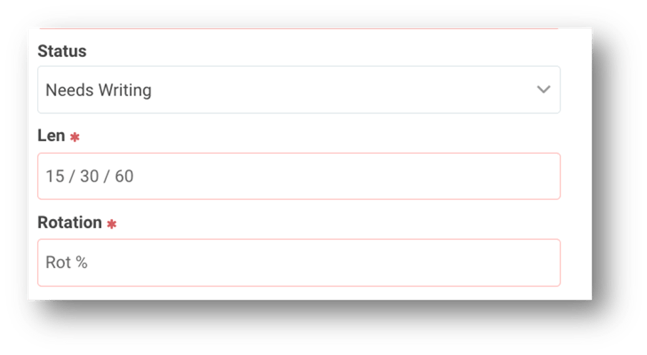
- Status - The Status is to indicate what needs to happen with this spot. Does it need to be produced, does it need to be dubbed, etc. Three common statuses are Needs Writing which is a request to the creative team to craft a script, Needs Dubbed which is asking to have the audio loaded to your automation system and Waiting on Copy which is a status you can use when you don’t have full information but want to get the Production order in. For further information on statuses, check out this knowledge article
- Length - From the drop down select your spot length i.e. :15, :30, :60. If you select more than one spot length a second line will be created.
- Rotation % - Enter the rotation for this given spot
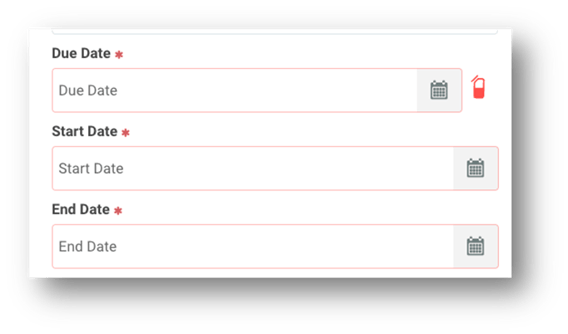
- Due Date - When does the production or dubbing of this spot need to be completed by.
- State Date - First date spot will air.
- End Date - Last date spot will air.
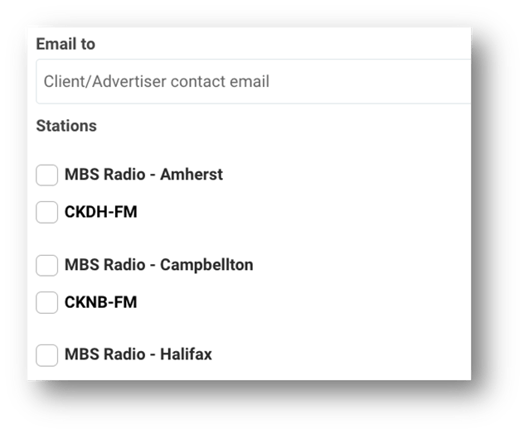
- Email to - This field is for your client’s email address. If they need to hear the spot or receive notifications, having the email entered here will facilitate that.
- Stations - Check the box next to each station this spot will need to air on, then enter the contract number. If you have multiple contracts, use a comma to separate the numbers. When selecting your Market Name, all stations will become selected.
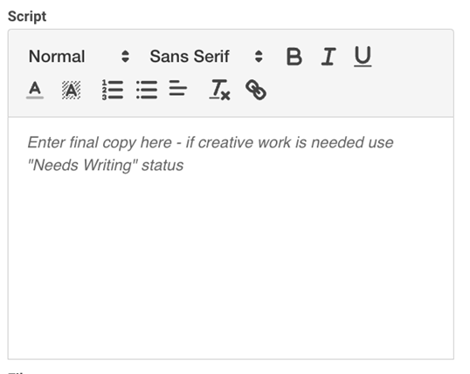
Script - This section is where Writers will enter script information . The script length is timed to allow confirmation that it matches your spot length. If the status is “Needs Writing” the script section will not be available.
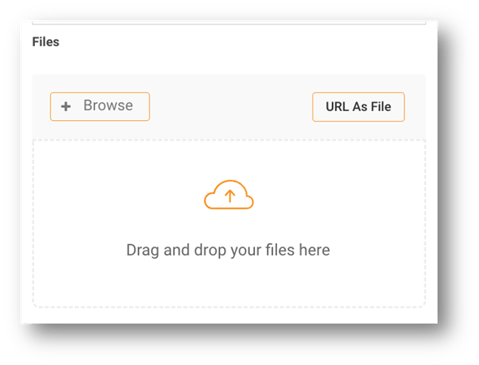
- Files - Use the files section to upload any documents like the audio file. You can drag or drop the file or click on the plus to search your file system. Once a file is attached choose the file type that is being uploaded. You can also input the URL to direct your team where they can access the file. You will need to select a file type when using the URL feature.
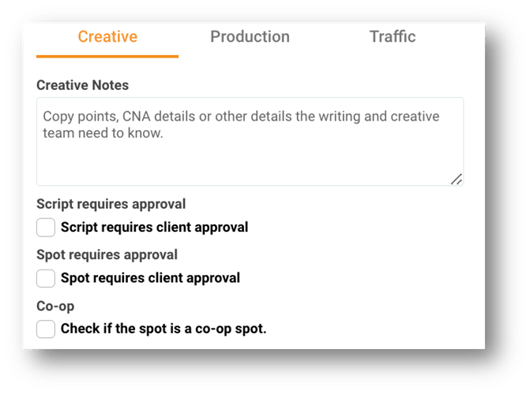
- Creative/Production/Traffic Notes - Enter any specific notes you might have for either production, traffic, or creative.
- Script and/or Spot requires approval - If your client requires that the script be approved prior to producing the spot, check the Script requires approval box. If your client requires that the produced spot be approved prior to airing, check the Spot requires approval box.
- Co-op - Check the box if this spot is a co-op order
- Submit - If all required fields have been completed, click Submit to move the PO into workflow.
Adding Spots to an Order
If you will have multiple spots on this order you can add them prior to submitting. When you add a spot the system will then automatically link all of the spots to the one Production Order.
- Add request - click on the Add request icon found on the upper right of the Production order screen. All information from the previous line will copy except for the Project title and the spot length.
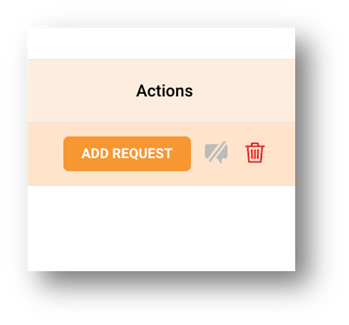
- Edit appropriate fields - Once you add the additional spot the order information for the new spot will be displayed on the left side of the screen. To edit, you can toggle between the two spots by clicking anywhere on the spot lines.
Copying spots
If you have instances where a client has a new PO and it is very similar to an order you have submitted in the past, you can copy the original order to save time entering the data.
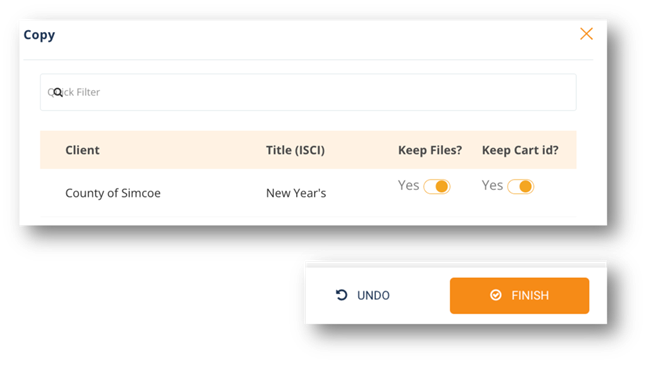
- Choose the PO to be copied by clicking the check box next to the advertiser name and click copy & select copy.
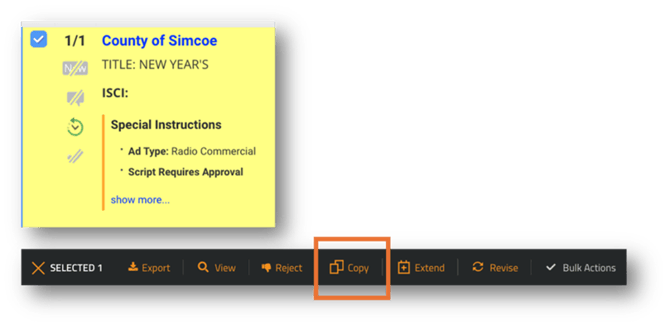
- Once the copy window opens, choose if you want to keep the files and/or the cart number and click After you click finish the new production order will open and you can make any necessary changes before you submit into workflow.
Extend spots
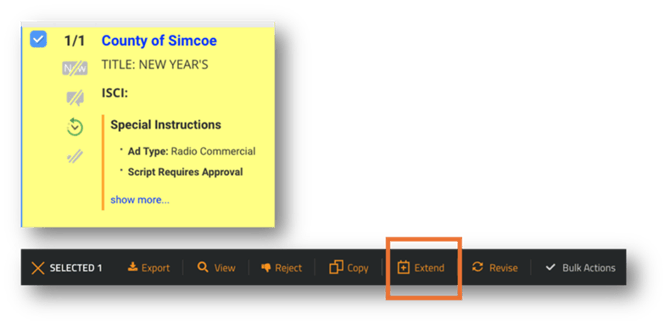
You can extend a spot that is either active or archived by locating the PO on the list view screen.
- Extend spots - Once you have located the PO you wish to extend, click the box next to the advertiser name and then click on the extend option on the Action Bar.
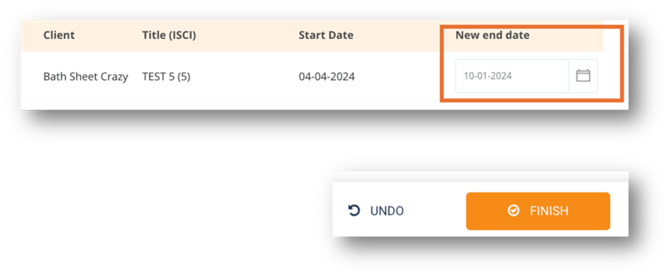
- Choose the new end date and click finish. This will move the spot into a status of extend dates and will alert the appropriate parties to make the changes in your traffic system and/or on air system.
Revisions
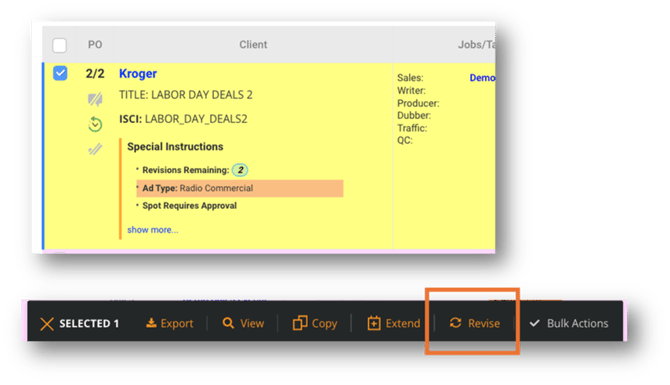
You can revise a spot that is either active or archived by locating the PO on the list view screen. It is important that you follow the below steps only for revising a spot. DO NOT just change the status to revised. Changing the status overwrites the original PO and you will not be able to restore the original version.
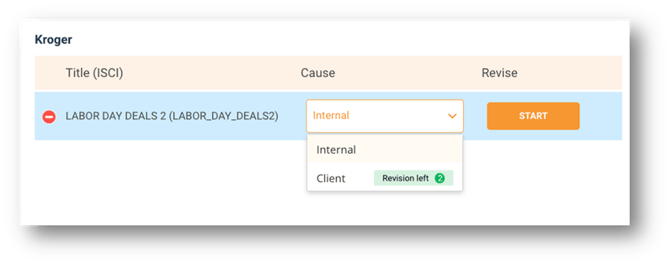
- Revise spots - Once you have located the PO you wish to revise, click the box next to the advertiser name and then click on the Revise option from the Action Menu.
- Choose the reason; Internal or Client - The reason indicates if the revision is being initiated from the client or is an internal reason. Once you select the reason, you will then click start to begin the revision process.
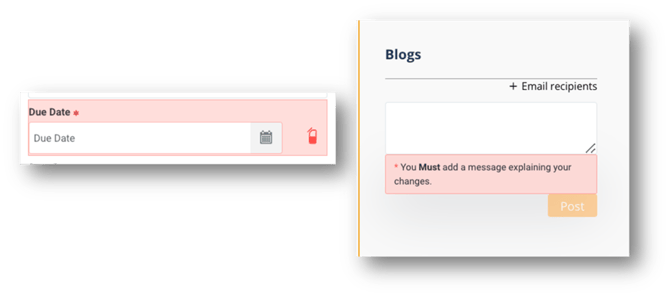
- Make necessary changes, enter a new due date, and post a blog regarding the change.
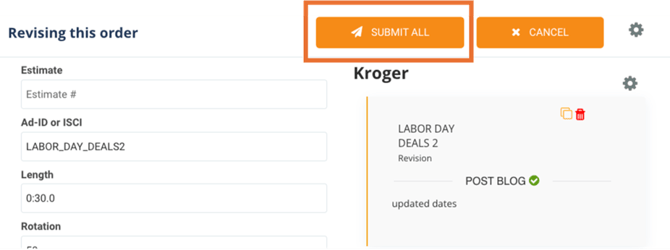
- Submit All - Once you click the submit all button your production order’s status will become Revision and move into workflow.
Miscellaneous Information
In this section you will find some basic information about additional features of vProMedia. This is not an all inclusive list. Instead we have included the information most pertinent to getting started in vProMedia.
Blogs
The blog feature is used to keep all needed communication housed in one location so everyone involved has access to that information. If you have turned on notifications for blog posts (see the Notifications section) you will receive an email anytime someone posts to a blog on a PO you are on.
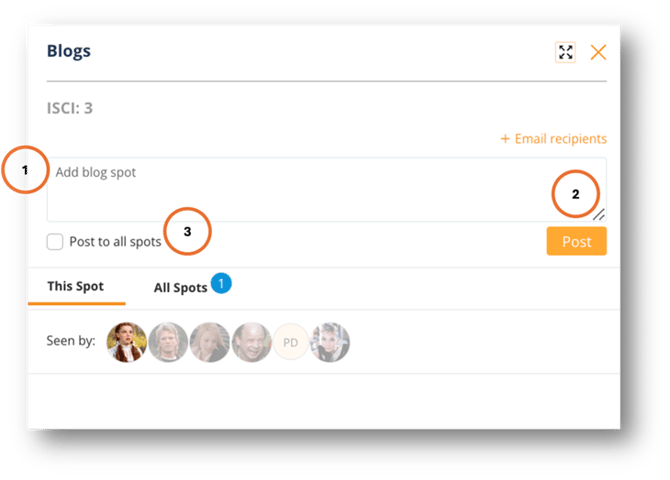
- Create a Blog Post - From the list view click on the blog icon in the PO column.
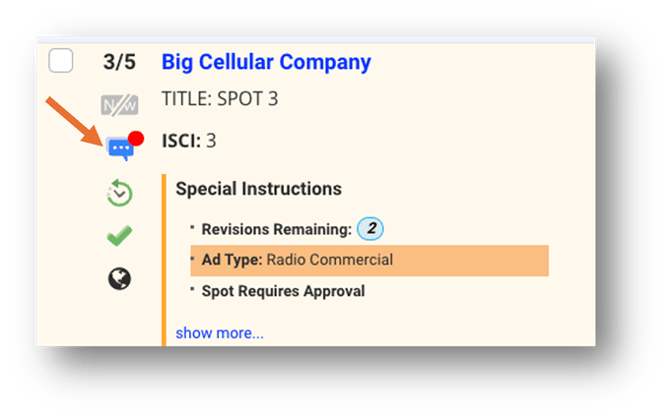
- Enter blog message - When the blog window opens enter the blog message and 2. click post. If the message needs to be posted to all spots, click 3. Post to all spots.
History
All actions that occur on a PO will be tracked in the history section. This includes action you as an AE might take along with any other user who works with this PO.
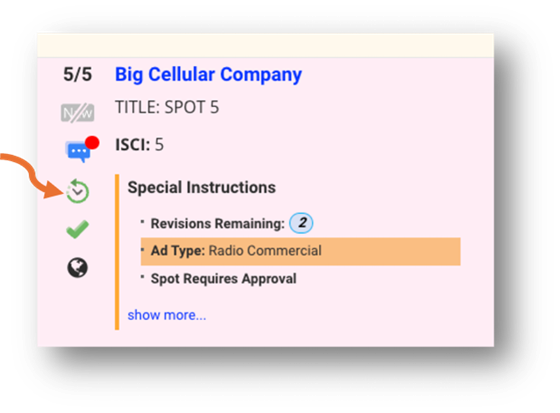
- To view the history - click on the stopwatch icon directly below the blog icon. Once the window opens you can scroll through the data to see all actions taken on this PO. You will notice the most recent history is located at the top of the list.
Searching & Saved Searches
vProMedia allows you to search for PO and if you desire save a given search for use in the future.
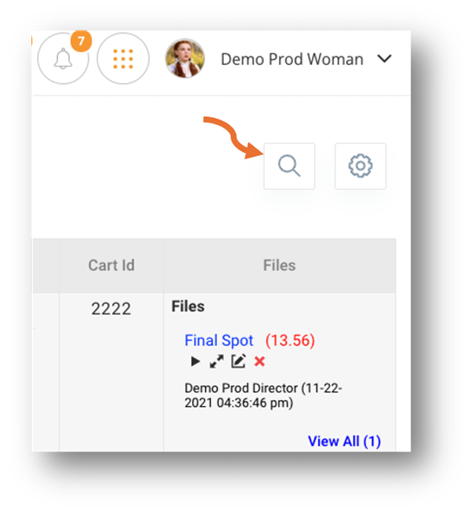
- Searching - Click on the search icon found on the upper right corner of the screen directly above the first PO in the list view.
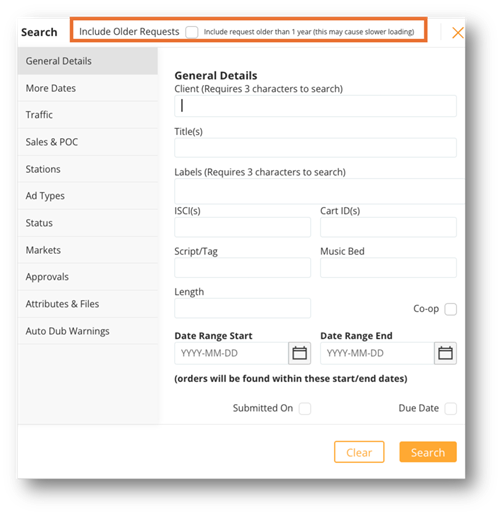
- Enter your search criteria - You have the ability to search by a multitude of fields. The more data you enter the more refined your search results will be. If you need to search for spots older than 13 months, click the Include Older Request Once you have entered your search data click search.
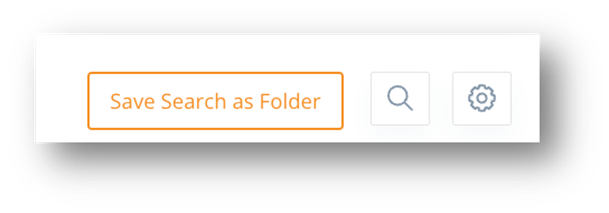
- Save a Search - You have the ability to save a search and have that search become a custom folder allowing you to quickly see all PO that match that search criteria. To do so, follow the steps above and after your search results display, click on the Save Search as Folder
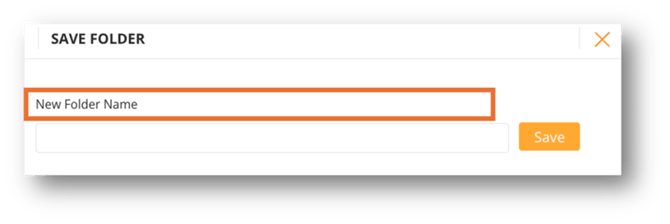
- Name your saved search - After clicking save, a new window will open where you will enter the name you would like to use for this saved search. Then click save again and this will now become a saved search folder.
My Account Profile
Within your account profile you have the ability to customize some features of vProMedia. The account profile is also where you can make adjustments to your email notifications. There are a variety of options in this section which are not all covered in this handbook. You can contact our Help Desk for guidance on managing your account. Below we will cover how to make adjustments to your notifications as that is something many AEs like to adjust when they are getting started in vProMedia.
- Access your account profile - To access your profile click on the My Account link under the maintenance section located on the left side of the screen.
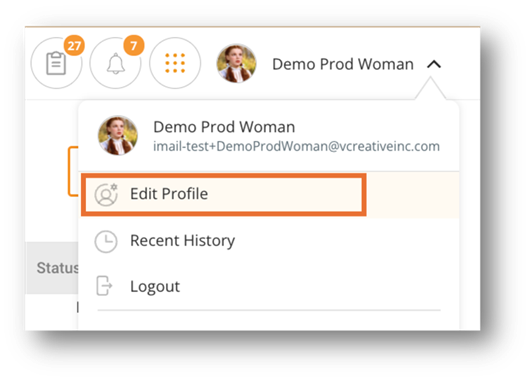
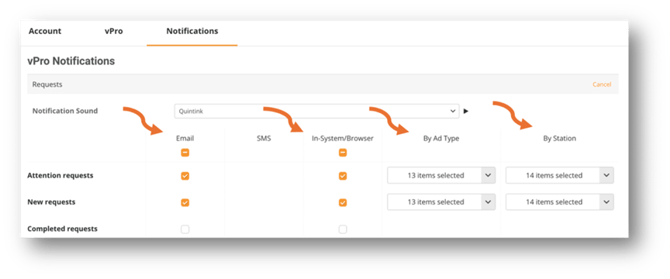
- Update your notifications - Once you access your profile, click on the Notifications tab and then scroll down until you see the section to update and then click on the edit icon on the far right of the screen to make changes. Once the edit window opens, you can select or deselect a given email or in system browser notification. The last two columns allow you to filter ad types or stations for which you receive notifications.
Contacting Support