![vCreative_Logo_RGB.png]](https://vcreativeinc.com/hs-fs/hubfs/vCreative_Logo_RGB.png?width=200&height=38&name=vCreative_Logo_RGB.png)

NEW AI Features require an AI subscription and are not enabled by default. Interested? Reach out to sales@vcreativeinc.com for more information.
Overview
The vCreative AI Suite gives vProMedia users several ways to reduce manual entry and speed up production order creation and setup.
Depending on how you receive an order and how you prefer to work, you can use:
- Email to Draft — send order details by email and have vProMedia automatically create a draft production order.
- Create with AI — type or speak a request, upload a file, or provide a screenshot and let vProMedia build the draft order.
- POC Smart Assist — receive suggested points of contact based on previous assignments for the same creator, client, and ad type.
- Quick Order — automatically populate points of contact based on previous assignments for the selected client.
Email to Draft and Create with AI are designed to turn order information into draft production orders without requiring you to manually enter every detail. POC Smart Assist and Quick Order can then help reduce the work involved in assigning points of contact.
Watch the Tutorial
Prefer a walkthrough? Watch the tutorial below to see the vCreative AI Suite features in action, including how to create orders and use AI-assisted workflows in vProMedia.
Use the sections below for detailed instructions and quick reference.
Email to Draft
Email to Draft lets you create a production order simply by sending an email.
Include the order details in the body of the email, as an attachment, or both. vProMedia reads the information provided and automatically creates a draft production order.
How Email to Draft Works- Send an email to your firm's designated order intake address. Your vProMedia administrator can confirm the correct address for your firm.
- Include the order details in the body of the email. Helpful information includes:
- Client name
- Spot title
- Run dates
- Station
- ISCI / Ad ID, if known
- Length, such as :15 or :30
- If you have a document containing the order information, such as a traffic instruction sheet or PDF, attach it instead of — or in addition to — typing the details in the email.
- You can also attach a screenshot of an order. vProMedia can read order information directly from an image.
- Send the email.
- The order will appear as a new draft in your Drafts folder in vProMedia, usually within a couple of minutes.
- Open the draft, review the information, complete any remaining required fields, and submit the order as usual.
Good to Know
Order details can be provided in the email body, an attachment, or both. vProMedia will use the information that is provided.
The information you send needs to match your firm's existing setup, such as station and ad type, so vProMedia can match the information correctly.
You can also email a screenshot containing the order information.
Create with AI
Create with AI is available from the left-hand navigation menu in vProMedia.
It allows you to create a production order by:
- Typing your request
- Speaking your request
- Uploading a file
- Dragging in a screenshot
- Combining a file with additional typed or spoken instructions
From the vProMedia left-hand navigation menu, select Create with AI.

The Create with AI screen lets you describe your request, upload a file, or attach additional instructions.
Option 1: Type or Speak Your Request
You can describe the order you want created using plain language in the request box.
For example:
“Create a :30 radio spot for Acme on Demo-FM, assign Tom as producer.”
“Create four radio spots for The Beta Boys on Demo-FM rotating 25 percent each.”
“Create a 30 second radio spot for The Beta Boys on Demo-FM running June through August and assign Wendy as producer.”
You can also select the microphone icon and speak your request instead of typing. Your request will be transcribed automatically and processed the same way.
You do not need to attach a file when using this option.
When your instructions are ready, select Process Request.
Option 2: Upload a File or Screenshot
If you already have documentation containing the order information, you can upload it directly into Create with AI.
- Drag and drop a file or screenshot into the request box, or click to browse and select a file. Examples may include:
- Traffic spreadsheets
- PDFs
- Traffic instruction sheets
- Screenshots containing order information
- Once the file has been added, it will appear below the request box.
- If needed, combine the upload with additional typed or spoken instructions. For example:
“Assign Wendy as producer.”
- Select Process Request or Upload & Process to begin.
While vProMedia Processes Your Request
While vProMedia analyzes your request and any uploaded files, you will see a brief Thinking screen.
Processing typically takes approximately 15–60 seconds.

vProMedia analyzing your request.
Review and Confirm Your Draft Orders
When processing is complete, vProMedia displays a preview of the spots that were extracted.
Depending on the information provided, the preview can include:
- Client
- Title
- ISCI
- Length
- Run dates
A single request or uploaded file can contain multiple spots.
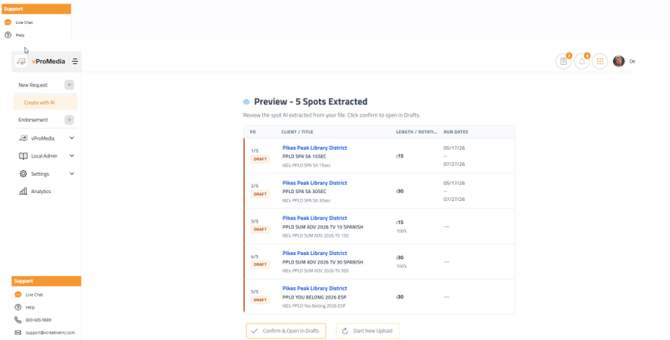
Preview the extracted spots before creating the draft production orders.
To complete the process:
- Review the preview and make sure the details look correct.
- Select Confirm & Open in Drafts.
- vProMedia creates the draft production orders and opens your Drafts folder.
- Open each draft, review the information, complete any remaining required fields, and submit the order as usual.
If something does not look right, select Start New Upload and try again.
Good to Know
Create with AI can be used with or without an attached file. A typed or spoken description may contain enough information to create the draft.
If vProMedia cannot recognize a detail — for example, if the station does not match a station configured in your account — you can add the information manually after opening the draft.
Multiple spots can also be extracted from a single file or request.
POC Smart Assist
POC Smart Assist helps reduce the time spent assigning points of contact to a job.
Based on previous assignments by the same creator for that client and ad type, POC Smart Assist recommends a contact for each applicable role. You can review the recommendations and apply them instead of selecting each contact individually.
Where You'll See POC Smart Assist
Once POC Smart Assist is enabled, anyone with delegation abilities will see the Smart Assist icon wherever points of contact are assigned.
List View
In the list view, the Smart Assist icon appears in the PO column.
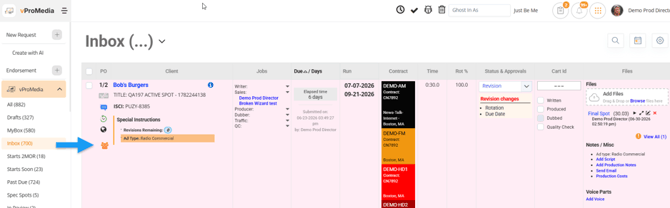
The Smart Assist icon in the list view.
Expanded Compact View
In the expanded compact view, the Smart Assist icon appears in the far-right column.
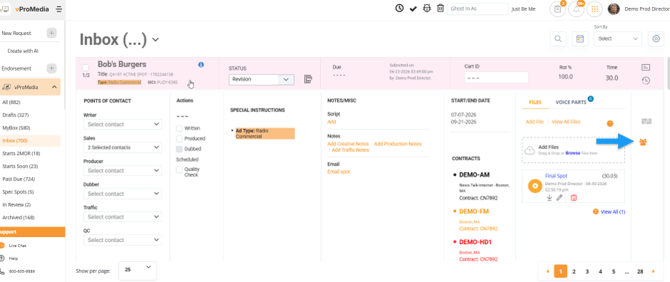
The Smart Assist icon in the expanded compact view.
Using POC Smart Assist
Select the Smart Assist icon to open the POC Smart Assistant.
The tool reviews previous assignments made by the same creator for the same ad type and client, then recommends a contact for each applicable role.
When recommendations are available:
- Each recommended contact is pre-selected.
- Roles that already have a point of contact are marked Assigned.
- Uncheck any role you would rather assign manually.
- Select Apply to assign the checked contacts.
- Select Cancel if you prefer to assign the contacts yourself.
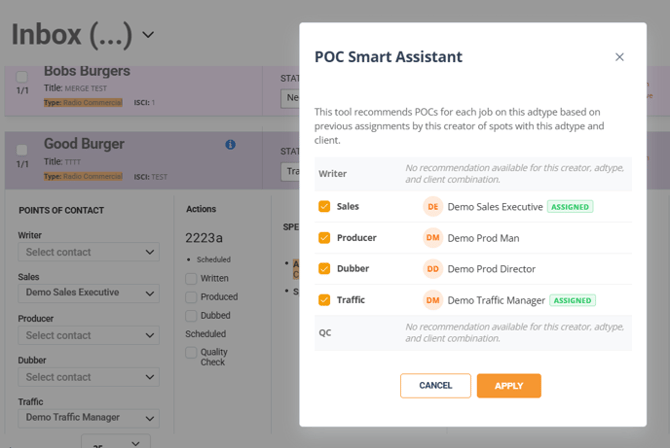
The POC Smart Assistant with recommended contacts ready to apply.
When a Recommendation Is Not Available
POC Smart Assist relies on previous assignment history.
If there is not enough history for a particular role, that role will indicate that no recommendation is available.
You can simply assign that role manually using your normal workflow.
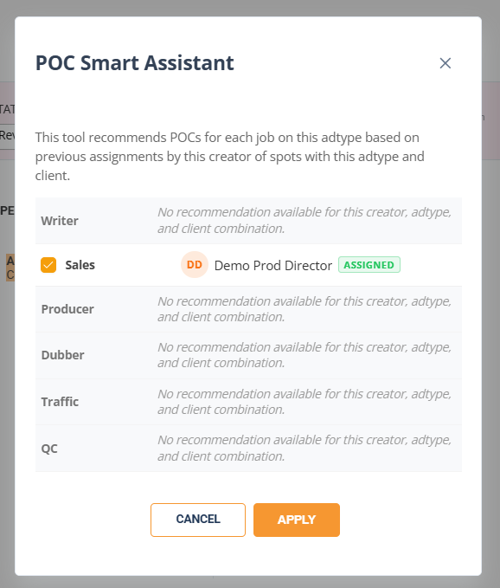
When there isn't enough assignment history, those roles remain available for manual assignment.
Quick Order
Quick Order provides another way to reduce the amount of manual POC assignment needed when creating an order.
As soon as you enter a client in Quick Order, vProMedia automatically checks for previously assigned points of contact for that client.
When previous assignments are available, the corresponding job fields are automatically populated. No additional Smart Assist selection is required.
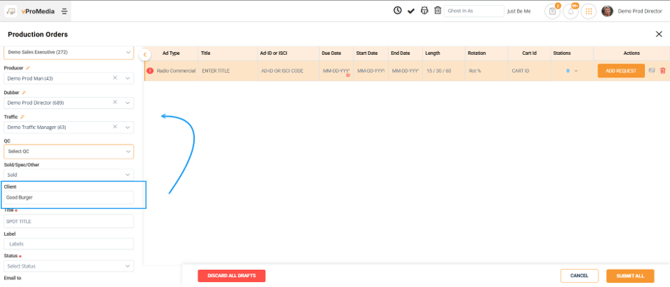
Entering the Client in Quick Order triggers the automatic point-of-contact lookup.
Which Option Should I Use?
The right option depends on where your order information comes from and what you need vProMedia to do.
Use Email to Draft when:
You receive an order by email or already have a traffic sheet, PDF, screenshot, or other order documentation that can be forwarded or attached.
Use Create with AI when:
You want to create an order directly in vProMedia by describing what you need, speaking your instructions, or uploading order documentation.
Use POC Smart Assist when:
A job already exists and you want vProMedia to recommend points of contact based on previous assignments for the same creator, client, and ad type.
Use Quick Order when:
You are creating an order through Quick Order and want previously assigned points of contact for the selected client to populate automatically.
Final Review
AI and automation can reduce the repetitive work involved in creating production orders, but the draft remains available for you to review before submitting it.
After an order is created:
- Review the information vProMedia was able to identify.
- Complete any required information that could not be matched.
- Review point-of-contact assignments or recommendations when applicable.
- Submit the order using your normal workflow.
Interested in the vCreative AI Suite for vProMedia? Reach out to sales@vcreativeinc.com for more information.
If you need help with these features once you have a subscription, contact your vProMedia administrator or vCreative Support at 800-685-9889.